
Is this your problem?
Page Interact reports this in three places. If you recognize any of them, this guide is the fix.
Your Facebook Pages screen shows the badge “Another app controls some chats”.
A finished campaign counts people under Unreachable, with the note “Some people could not be reached because another Messenger app was controlling their chat.”
Replying from the inbox fails with “Another Messenger app is handling this chat right now.”
Your logs or support ticket show
(#10) Message failed to send because another app is controlling this thread now, witherror_subcode: 2018300.
If your recipients are Unreachable but you see none of the above, the cause is different — deactivated accounts, privacy blocks, or people outside the 24-hour messaging window. Check the tooltip on the Unreachable tile in your campaign.
Why this happens
Messenger lets several apps connect to the same Facebook Page — Page Interact, Meta’s own Page Inbox, and third-party tools like ManyChat or Chatfuel. To stop them talking over each other, Meta runs a system called the Handover Protocol. It gives exactly one app control of each conversation at a time.
When another app owns a conversation, Meta rejects Page Interact’s message for that person. Nothing is delivered, and the recipient is recorded as Unreachable rather than sent.
Two things are worth knowing before you start:
It is per conversation, not per Page. Your campaign keeps running. Only the chats the other app controls are skipped, which is why one campaign can show both delivered and unreachable recipients.
You are not charged for them. Skipped recipients are never deducted from your message balance.
The fix is a setting inside Meta’s Page Settings. Page Interact cannot change it for you — Meta deliberately provides no API for it, so a Page admin has to do it once, by hand.
Before you start
Full control of the Facebook Page. Business support access is not enough — the settings below simply will not appear.
A desktop browser. These settings are not available in the Facebook mobile app.
The Page already connected in Page Interact. If it is not, connect it first.
The whole process takes about two minutes and only has to be done once per Page.
Prefer to watch? This 50-second walkthrough covers all four steps end to end.
Step 1 — Open Settings & privacy
Log in to Facebook with the account that has full control of your Page, then open your profile menu in the top-right corner and choose Settings & privacy, then Settings.
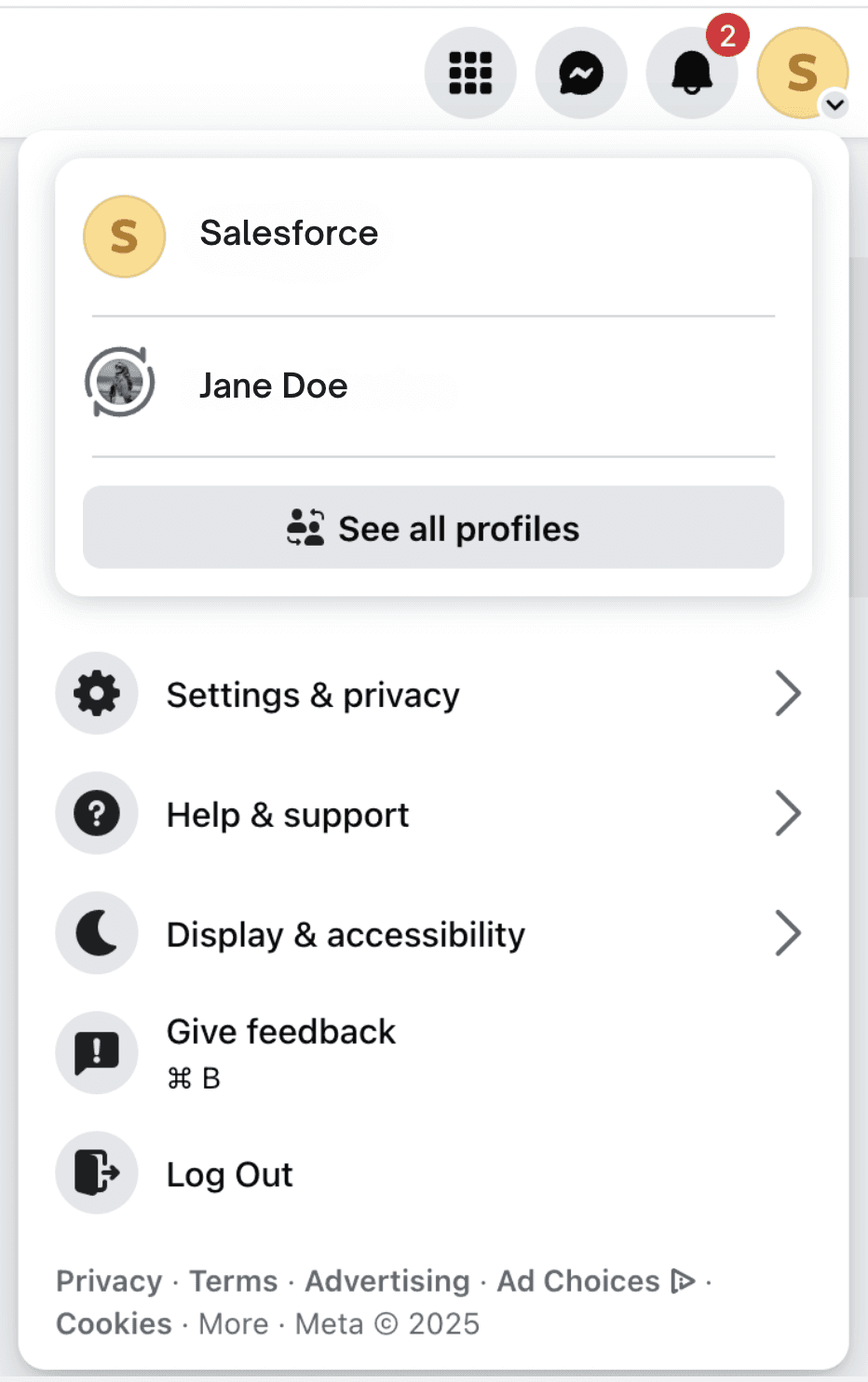
If you manage several Pages, switch into the correct Page profile first — the routing settings belong to the Page, not to your personal account.
Step 2 — Open Page setup
In the left sidebar, select Page setup. The panel on the right lists everything you need: Advanced Messaging and Messenger conversation routing.
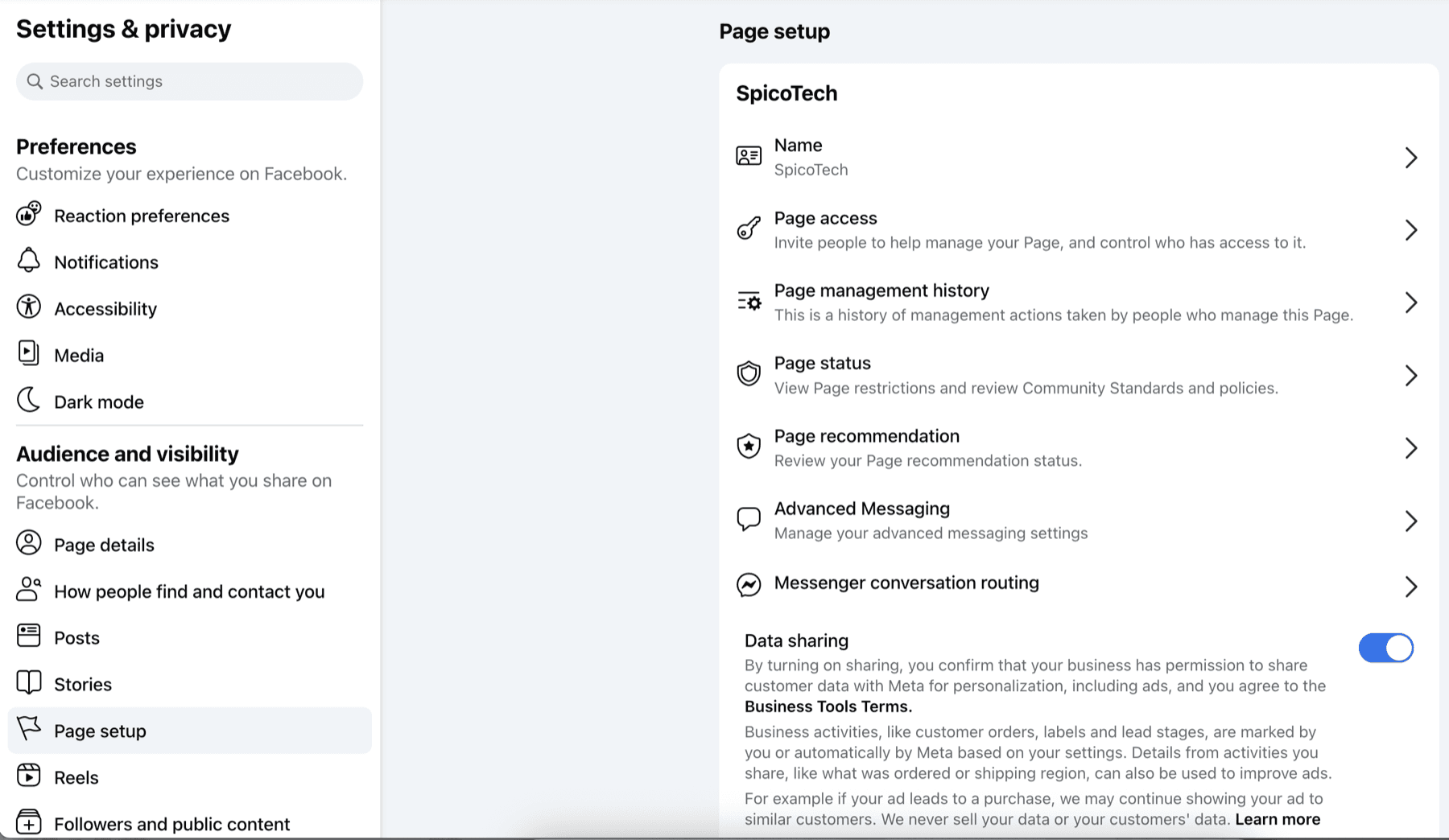
Do not see either option? You almost certainly have Business support access rather than full control. Ask whoever owns the Page to make this change, or to grant you full control first.
Step 3 — Check which app owns conversation routing
Open Messenger conversation routing and look at Default routing app. Whatever is listed here receives every new conversation on this Page by default.
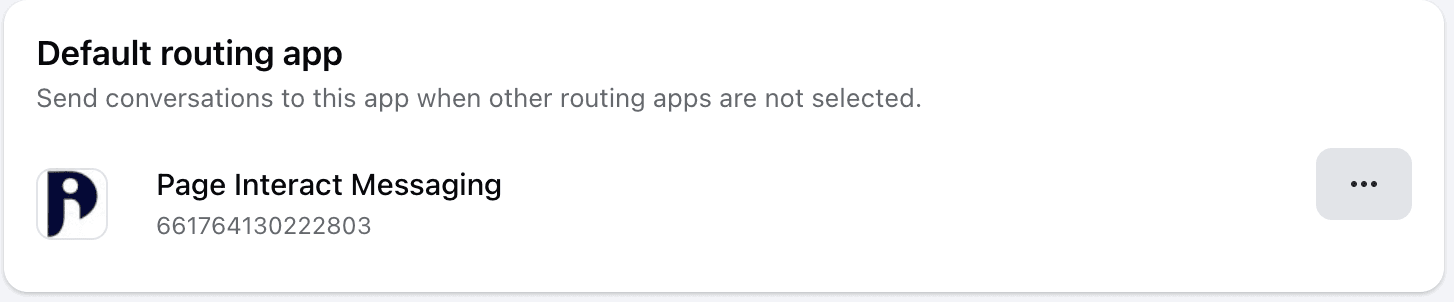
If another Messenger tool is listed here, remove it. Click the ⋯ button on that row and choose Remove.
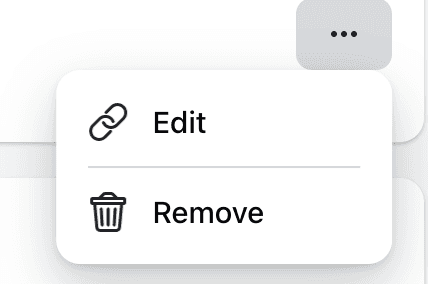
Removing it does not disconnect or disable that tool. We have tested this: with no default routing app set, every app connected to the Page is treated the same and all of them keep working. The setting only decides which app claims new conversations first — and that is exactly what was locking Page Interact out.
Step 4 — Turn on Take control of conversations
Go back to Page setup and open Advanced Messaging. This is the setting that actually resolves the error.

Find Page Interact Messaging in the list and click Edit.

You will most likely see both permissions switched off. This is the state that causes skipped recipients.
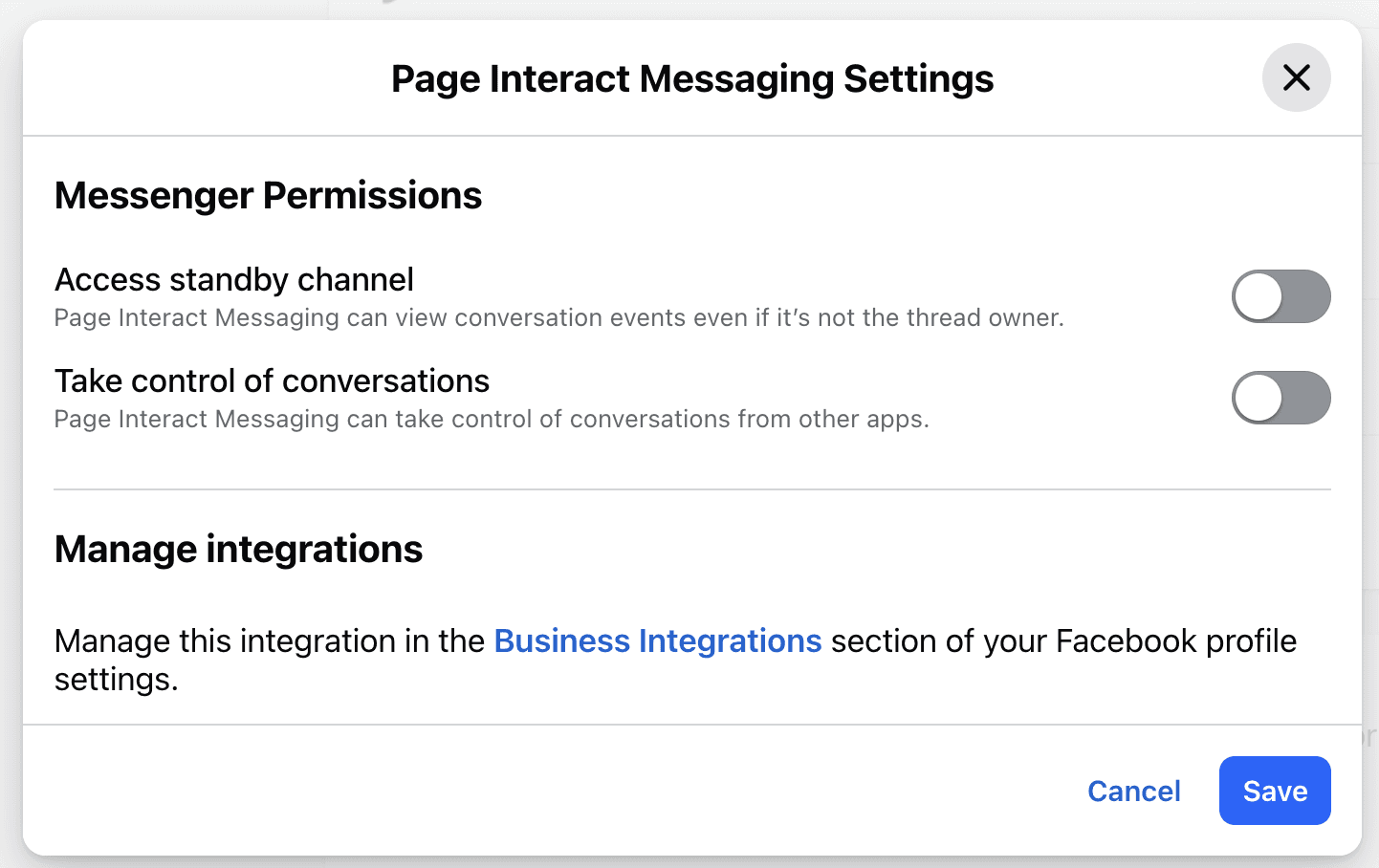
Turn both on:
Take control of conversations — lets Page Interact take a chat from another app so your message can send. This is the one that fixes the error.
Access standby channel — lets Page Interact keep seeing replies on chats it does not currently own, so your inbox stays complete.
Then click Save. Both switches should now be blue.
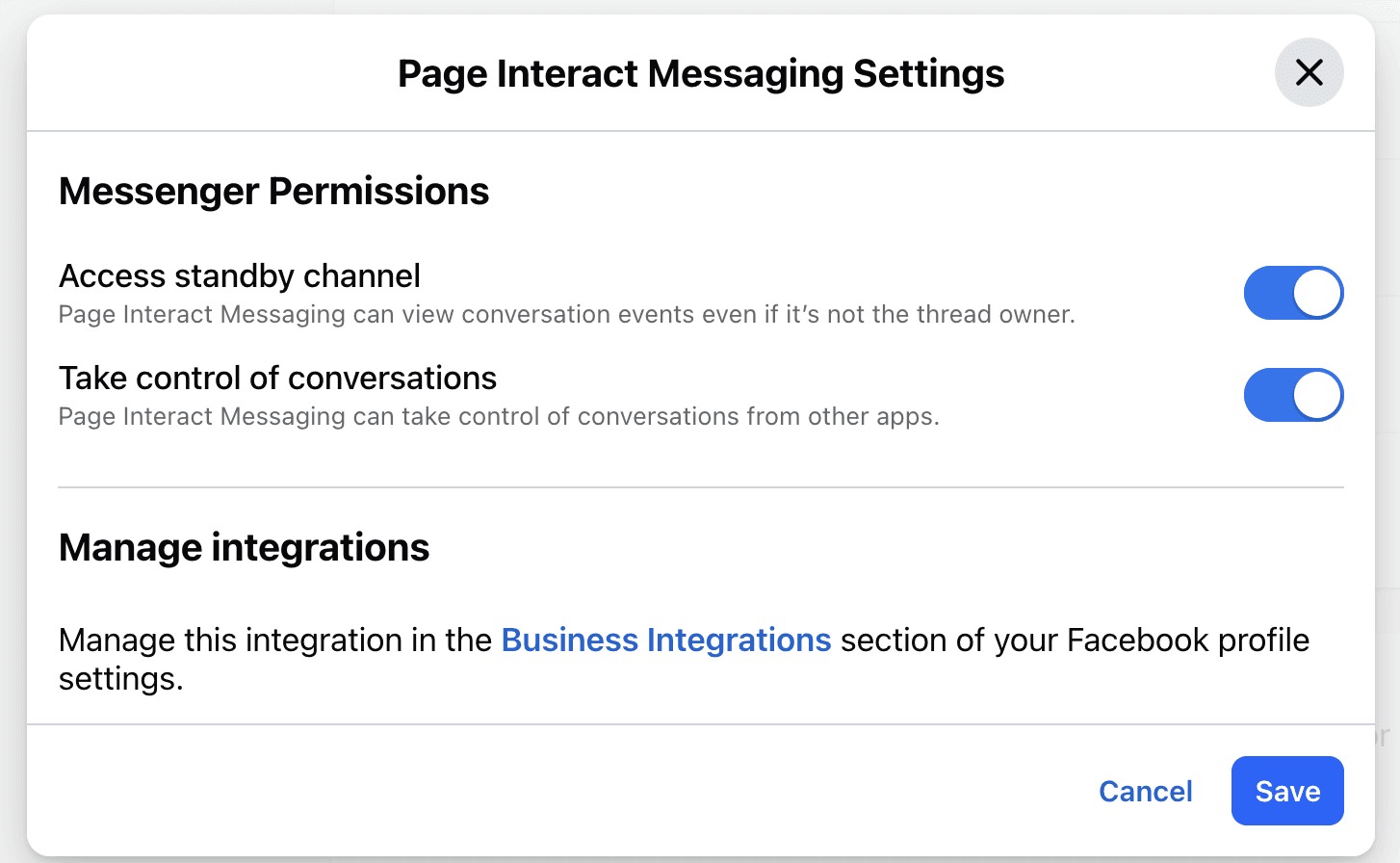
How to confirm it worked
Reopen Advanced Messaging → Page Interact Messaging → Edit. Both switches should still be on.
Send one message from the Page Interact inbox to a recent conversation. It should send without the “Another Messenger app is handling this chat” error.
Run a small campaign. The Unreachable count should drop.
The “Another app controls some chats” badge on your Facebook Pages screen clears on the next health check.
Recipients already marked Unreachable in a campaign that has finished are not retried automatically. To reach those people, create a new campaign once the setting is saved.
If it still does not work
What you see | Likely cause | What to do |
|---|---|---|
The settings are not in Page setup | You have Business support access, not full control of the Page | Ask a Page admin with full control to make the change |
The badge comes back days later | A teammate re-added the other routing app, or the other tool reclaimed it | Re-check Default routing app and review who has admin access |
Recipients are still Unreachable, but the badge is gone | A different cause — deactivated accounts, privacy blocks, or people outside the 24-hour window | Check the tooltip on the campaign’s Unreachable tile |
The Page shows a messaging restriction instead | Meta has limited messaging on this Page | Thread control is not the cause. Resolve the restriction under Page status first |