
Facebook only lets a Page send ordinary Messenger replies within 24 hours of a person’s last message. Template messages are the compliant way past that limit: Meta-approved utility messages you can send to your whole audience at once — or inside a single conversation — at any time.
This guide walks through both flows in Page Interact V2, step by step: sending a template bulk message to every lead on your selected Facebook Pages, and sending a single template message from the unified Inbox. No technical background needed.
What is a Facebook template message?
A template message is a pre-approved message format for Facebook Messenger. The structure is fixed and reviewed by Meta; you fill in the blanks — a headline, a few lines of text, sometimes a button link — and Page Interact personalizes and delivers it for you.
Pre-approved by Meta. Every template is reviewed before it can be sent, so deliveries are policy-compliant by design.
Fill in the blanks. You only type the variable parts; the message layout stays fixed.
Personalized. Insert %{name} anywhere and each lead receives the message with their own name.
Works beyond the 24-hour window. Templates send as Meta utility messages, so they can reach leads long after their last reply.
Predictable cost. One message credit per delivered message — failed or skipped sends are never charged.
You do not have to write or submit templates yourself. Page Interact ships a library of ready-made starter templates and automatically sets up an approved copy on every Facebook Page you send from.
Bulk or one-to-one: which should you use?
Template bulk message | Single template message | |
|---|---|---|
Where | Bulk messages → New Template Bulk Message | Inbox → open a conversation → Template |
Audience | Every eligible lead on the pages or labels you select | One person |
Best for | Announcements, promotions, re-engagement | Follow-ups and support in one chat |
Timing | Send now or schedule for later | Sends immediately |
Both use the same starter template library, and both cost one message credit per delivered message.
Before you start
Four things need to be in place — all covered in the getting-started guide:
A Page Interact account. Sign in at app-v2.pageinteract.com. Team members use Sign in as a team member with the workspace ID, email, and password their owner shared — and need Campaigns access to send bulk messages.
A connected Facebook account. Connect it under Connect Facebook so your Pages show up.
Synced leads. On Facebook Pages, run Sync Leads for each page. The first sync imports your full Messenger history and can take a few minutes.
Message balance. Every delivered template message uses one credit — check Billing & Packages before a big send.
Bulk step 1: Open New Template Bulk Message
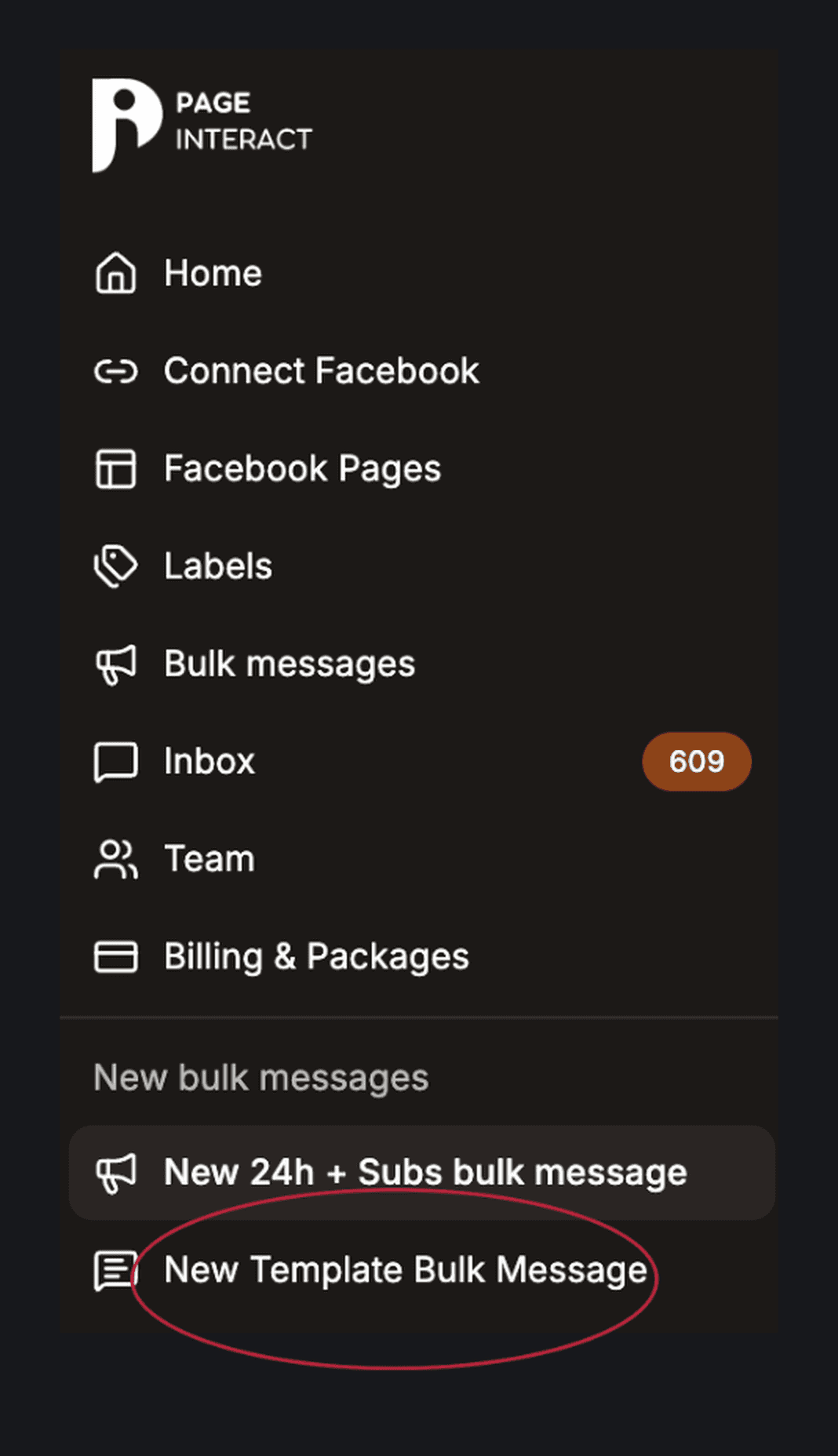
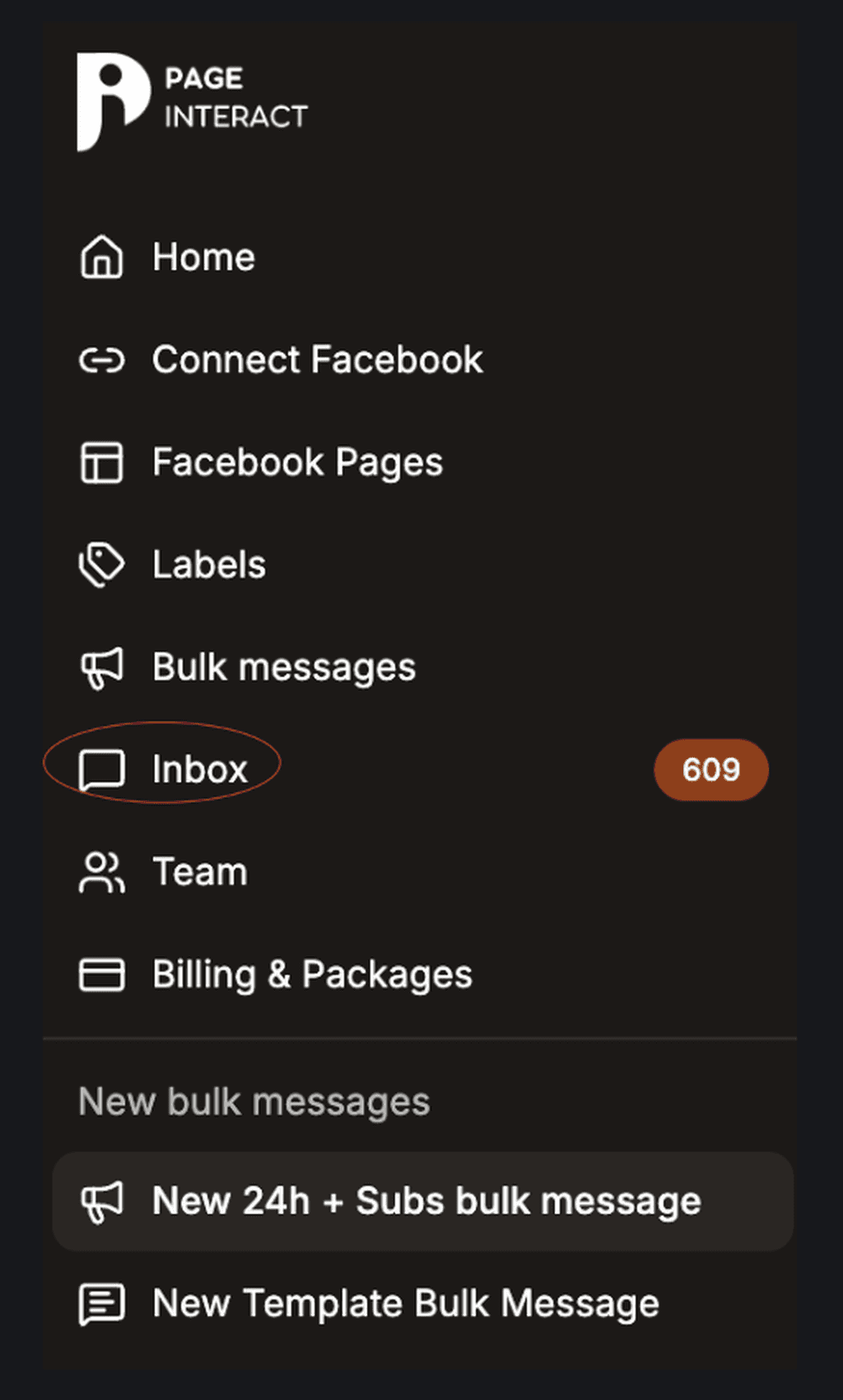
In the left sidebar, under New bulk messages, click New Template Bulk Message. The wizard has three short steps: Recipients, Template, and Review and send.
Bulk step 2: Choose who receives it
First decide how to target your audience:
Specific Facebook pages — every matching lead on the pages you tick.
Labels across all connected pages — any lead carrying a label you choose, no matter which page they belong to.
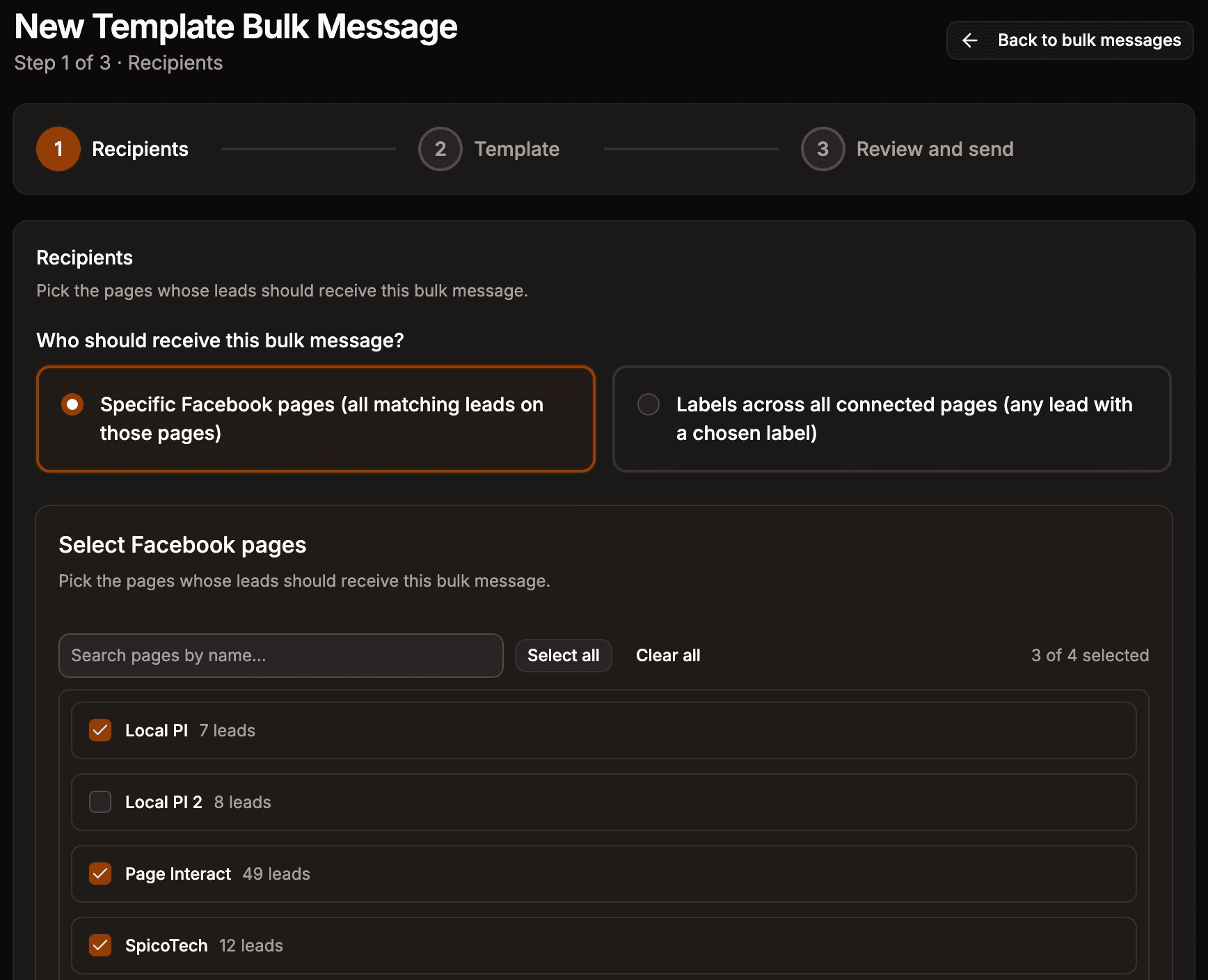
Tick the pages (or labels) you want — use the search box and Select all if you manage many. Optionally, open Exclude leads with any of these labels. A lead carrying an excluded label never receives the message, even if they also match an included label or sit on a selected page.
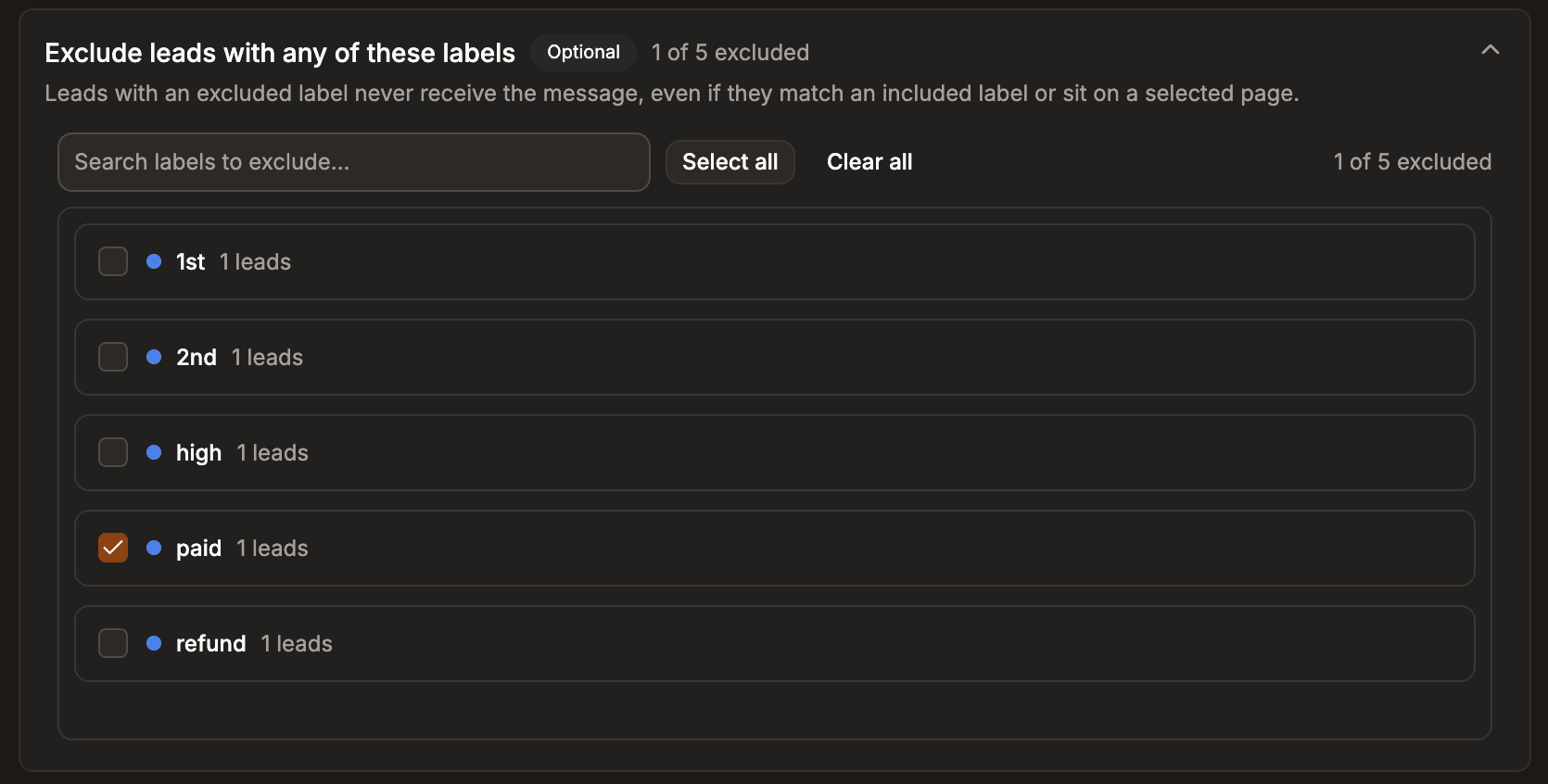
Page Interact automatically targets every reachable lead in your selection — including people whose 24-hour window closed long ago, which is exactly what templates are for. Leads that are marked unreachable, sit in your Done or Spam folders, or carry an excluded label are skipped for you.
Bulk step 3: Pick a template and fill in your text
Click Browse starter templates to open the library.
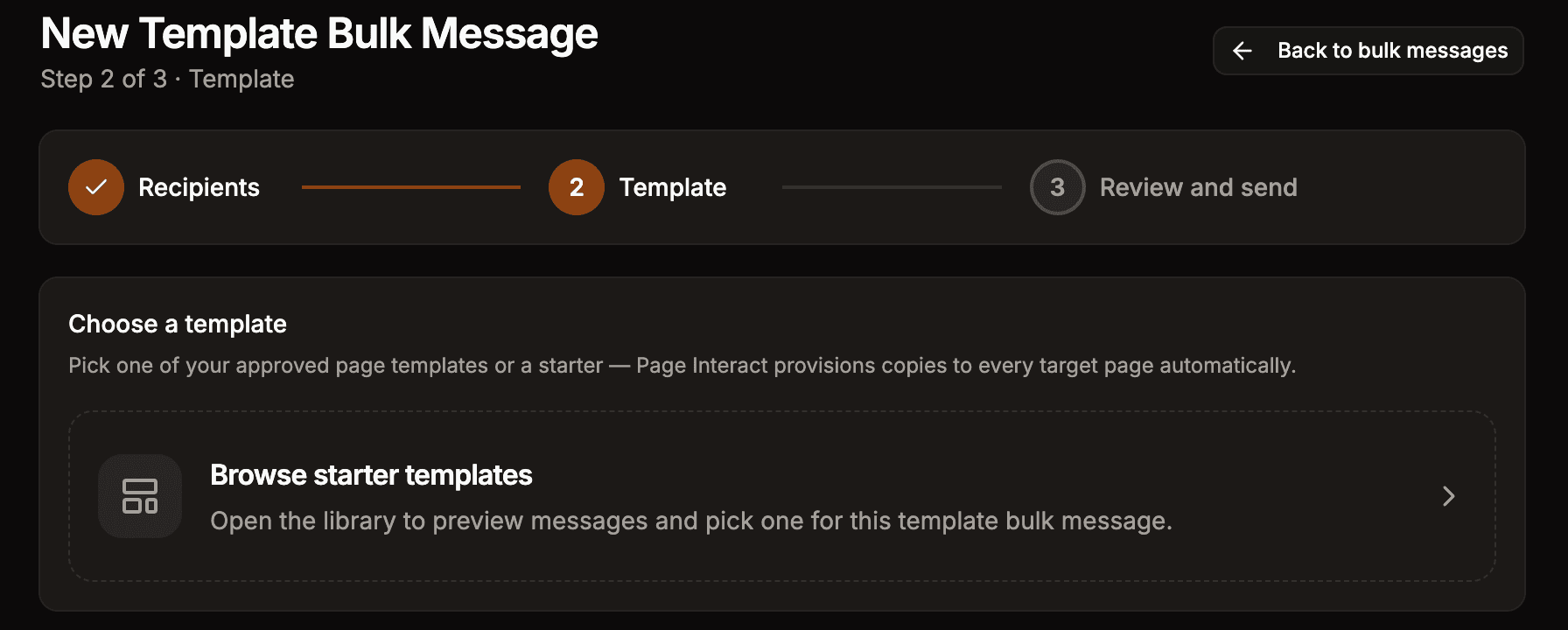
Search the library, click a template to see a live Messenger preview on the right, then press Use this template.

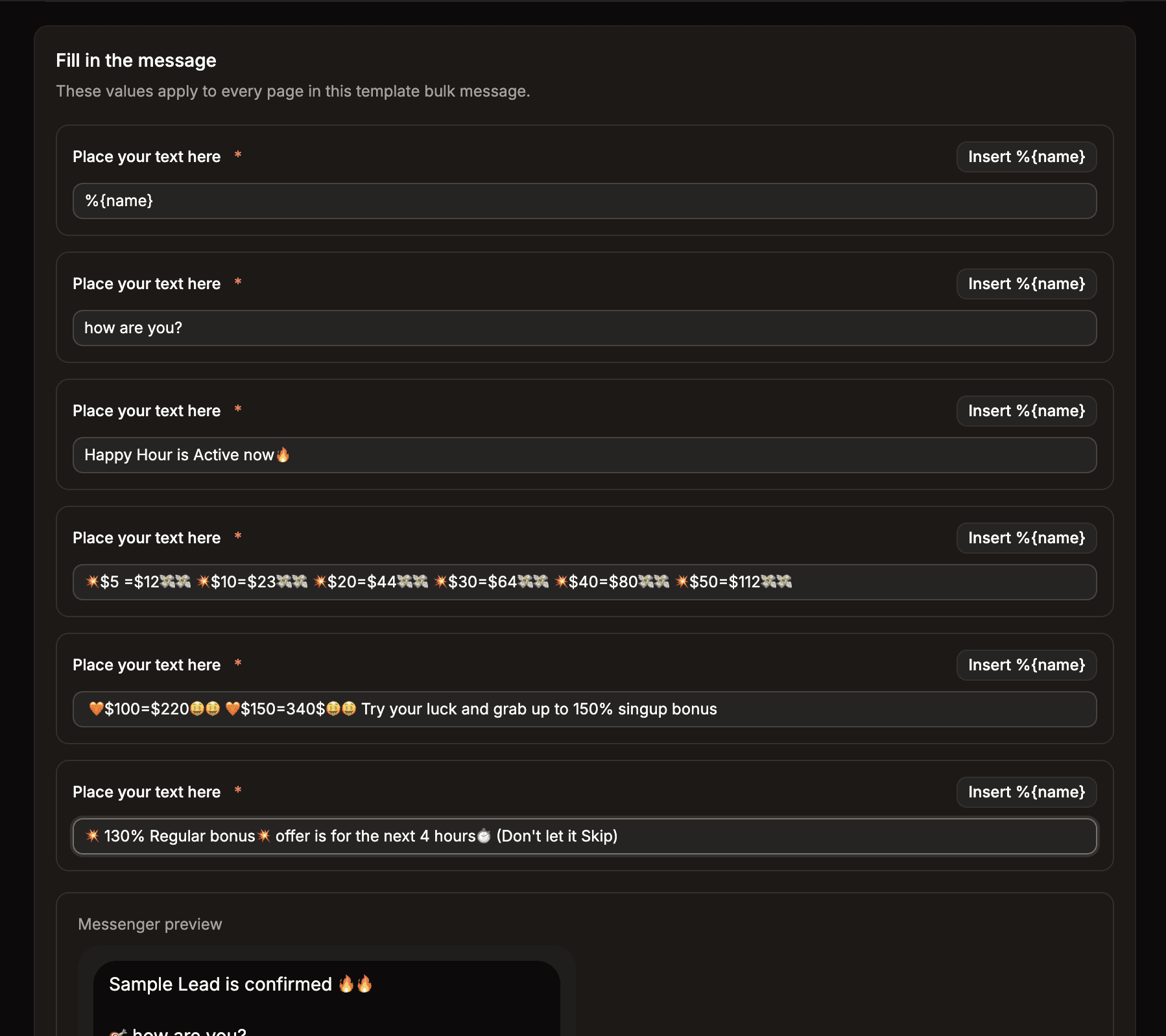
Now fill in the message. Each field is one blank in the template — type your text, or press Insert %{name} to drop in the lead’s name. The values you enter go to every page in this bulk message, and required fields are marked with an asterisk.
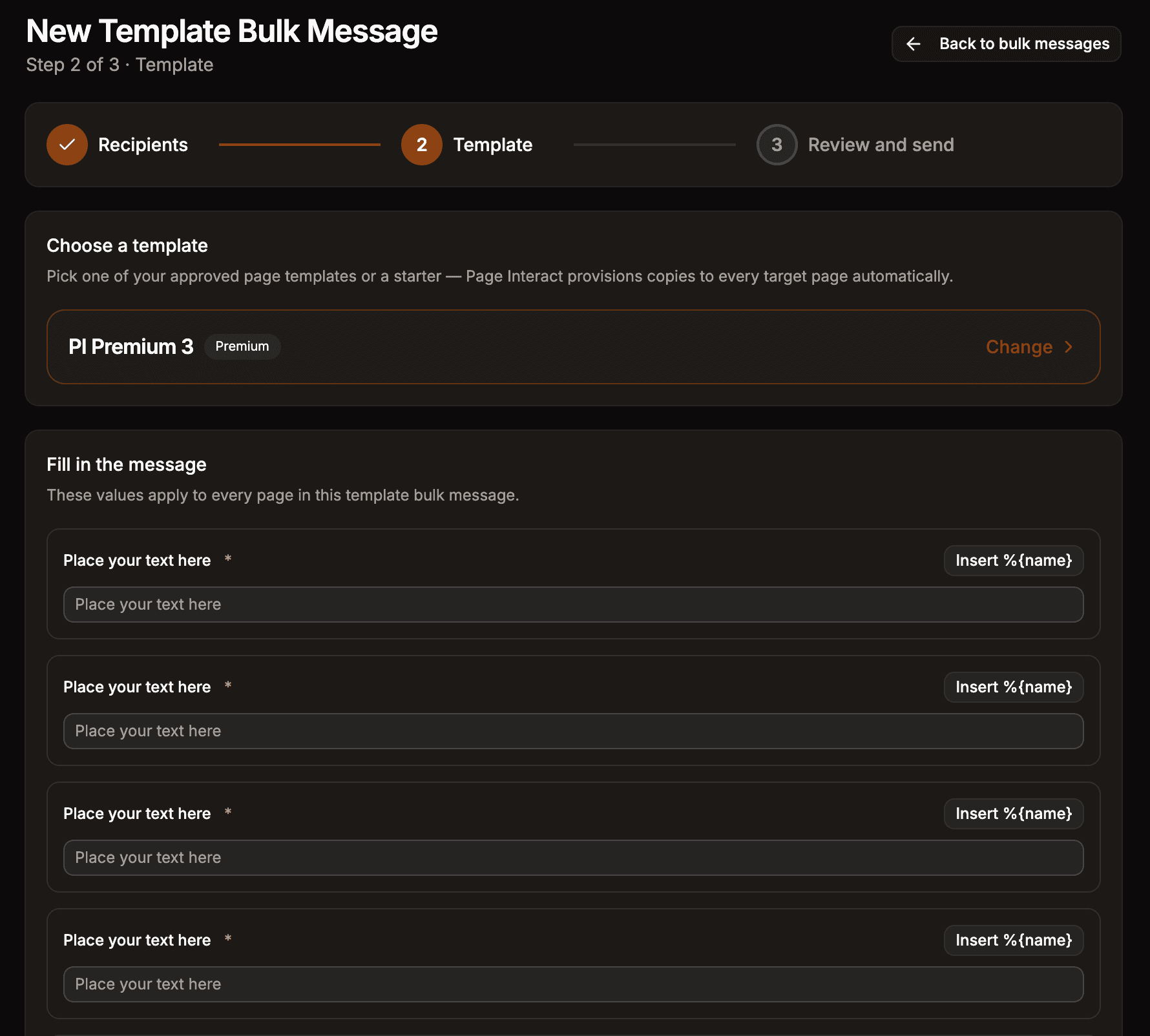
As you type, the Messenger preview updates so you can see exactly what leads will receive. If a template includes an image or video header, it always uses the sample Meta approved — media cannot be swapped per campaign.
Bulk step 4: Review, then send now or schedule
The last step shows everything that matters before you commit:
Page readiness — pages marked Will set up automatically have no approved template copy yet; Page Interact creates and submits one for you as part of sending.
Estimated cost — Estimated messages is the number of eligible recipients (one credit each), shown next to your Current balance. If the balance cannot cover everyone, sending stops when it runs out — top up first to reach the full audience.
The policy checkbox — confirm you understand this sends Meta utility template messages.

Under Send timing, keep Send now, or pick Schedule for later and choose the date, time, and timezone.
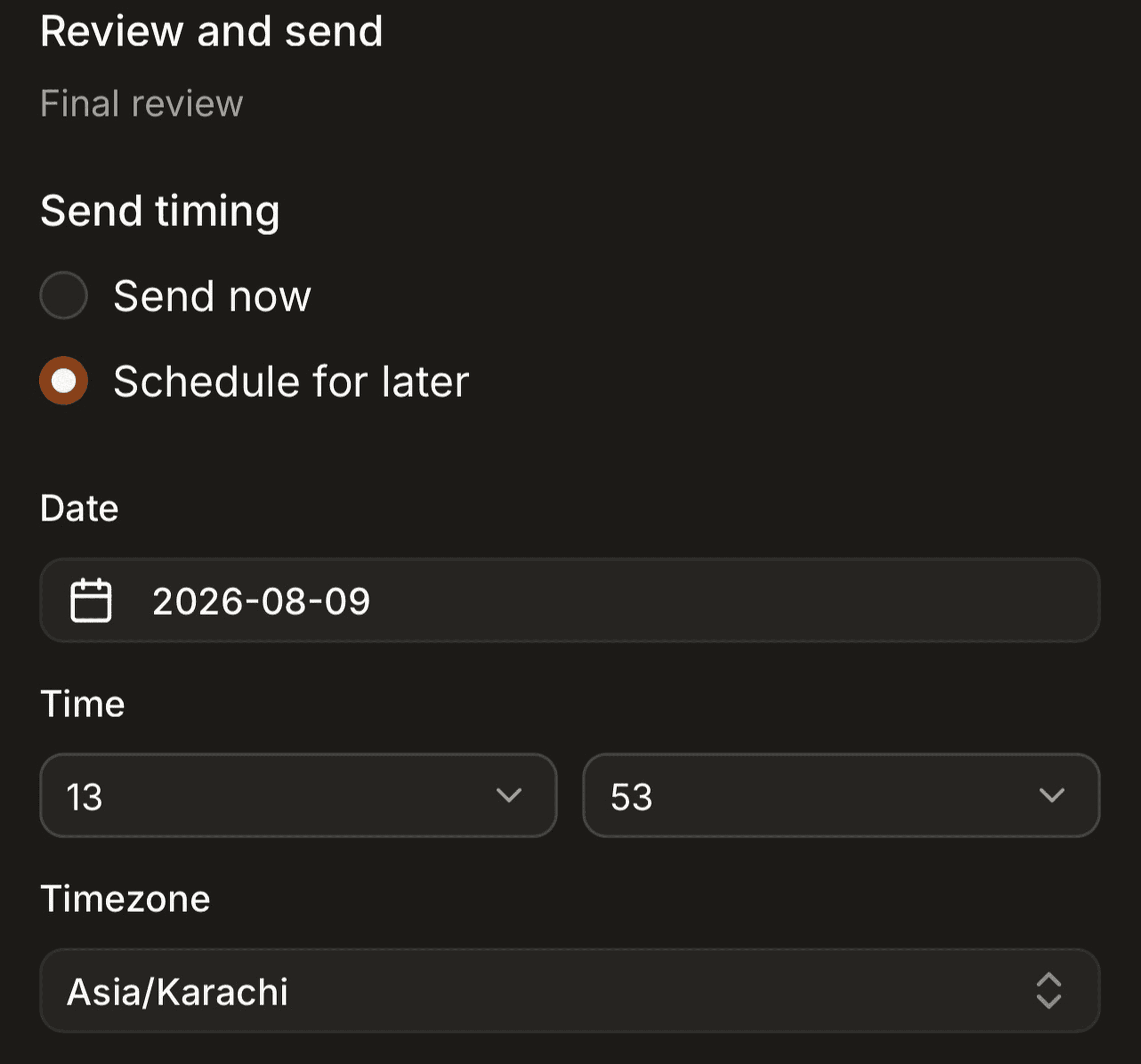
Scheduled bulk messages run entirely on Page Interact’s servers at the exact time you set — your laptop, browser, and internet can all be off.
What happens after you press Send
Your bulk message moves through a few statuses on the Bulk messages page — every one of them is normal:
Status | What is happening |
|---|---|
Pending / Scheduled | Queued, or waiting for its scheduled time. |
Setting up templates | Page Interact is creating and submitting an approved template copy on each page that needs one. |
Syncing leads | Refreshing each page’s leads so new contacts are included and stale ones are skipped. |
Preparing | Building the per-recipient send list. |
Sending | Messages are going out at a safe, Facebook-friendly pace. |
Completed | Done — sent, failed, and skipped counts are shown per page. |
Open the bulk message to watch live progress, per-page counts, and the reason for any skipped recipient.
Inbox step 1: Open the conversation
To send a template to one person, click Inbox in the sidebar — it gathers Messenger conversations from all your connected pages in one list. You can also go through Facebook Pages and open a specific page’s conversations. New to the inbox? See the unified Inbox guide.
Find the person with the search bar — it matches lead name, PSID, or page name — or narrow the list with filters.
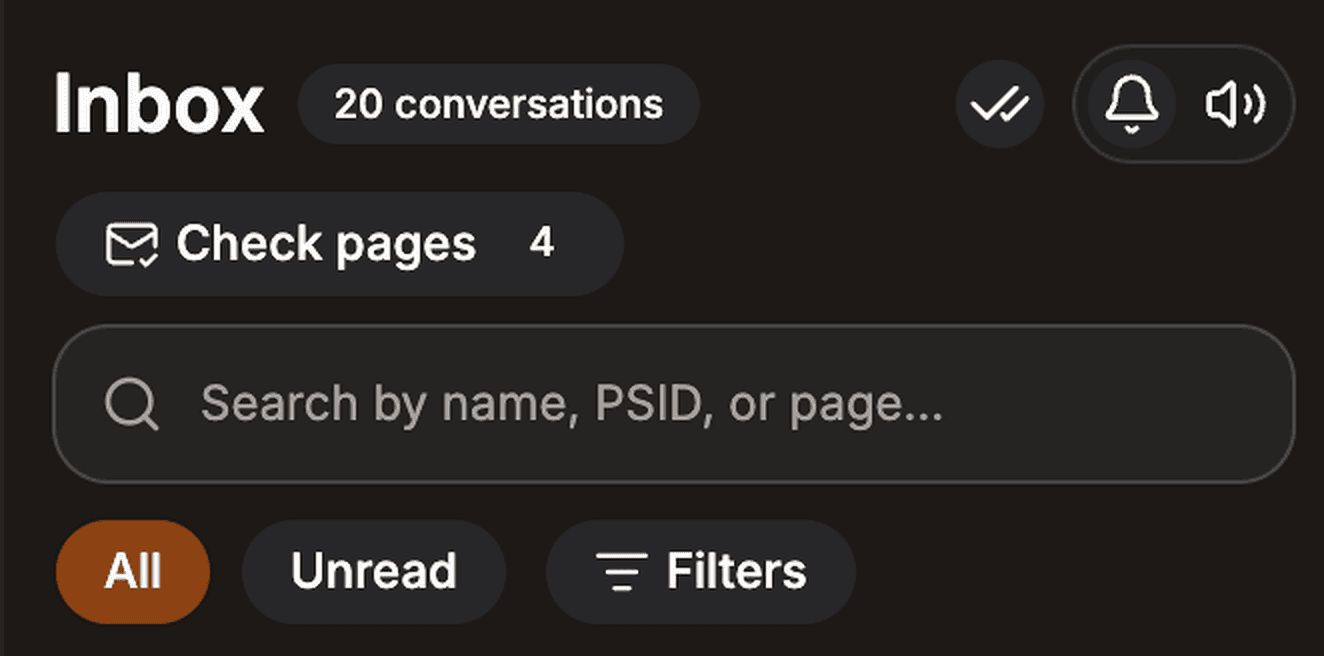
Click the conversation to open the chat window.

Inbox step 2: Switch the composer to Template
Above the reply box are two modes: Message (a normal reply, only possible within the 24-hour window) and Template. Click Template.
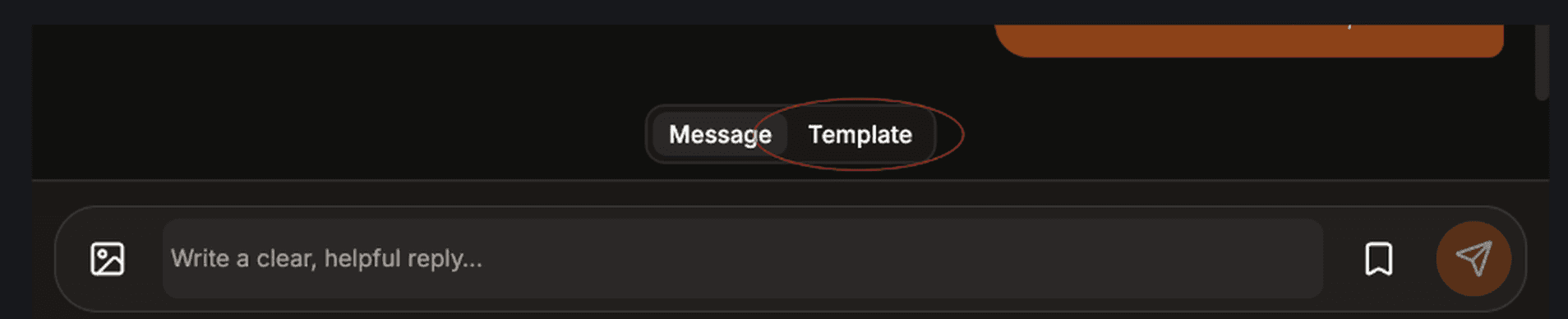
Then click Choose a template — as the strip says, this sends a utility template outside the 24-hour window.

Inbox step 3: Pick, personalize, and send
The same starter library opens. Pick a template, check the Messenger preview, and press Use this template.
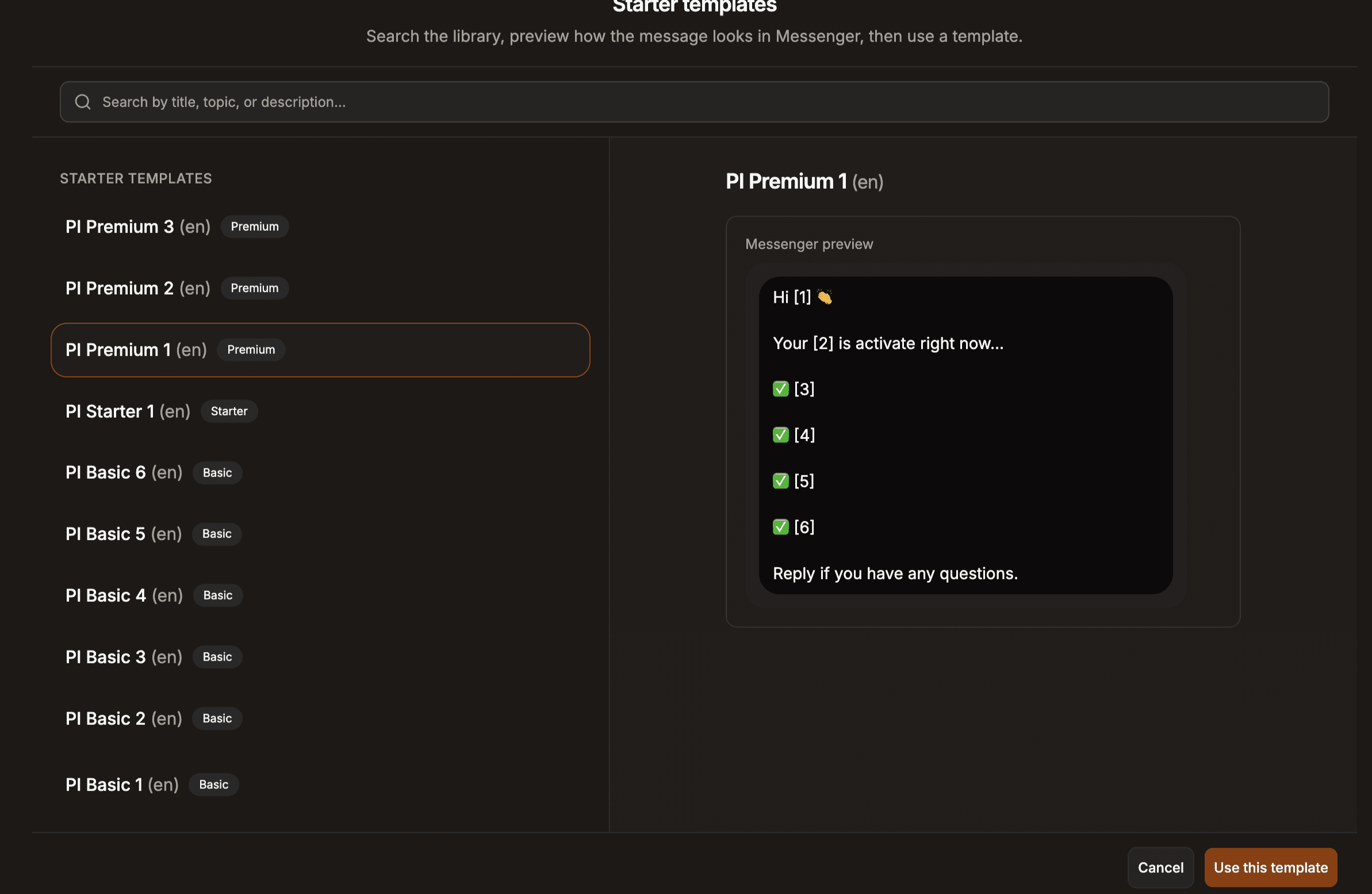
Fill in every variable for that person — Insert %{name} works here too — check the preview, then press Send template.
The message appears in the thread with a Template badge. If this page has never used that template before, Page Interact sets it up in the background — if you see “This template is still pending Meta approval. Try again in a few minutes.”, wait a moment and send again.
How many message credits do template messages use?
Send type | Credits used |
|---|---|
Single template message (Inbox) | 1 |
Template bulk message | 1 per delivered recipient |
Failed, skipped, or undelivered sends | 0 |
Credits are deducted only when Facebook accepts the message. If your balance hits zero mid-campaign, sending stops and the rest of the bulk message is cancelled — you are never charged for recipients who were not reached.
Troubleshooting: what the messages mean
What you see | What it means | What to do |
|---|---|---|
This Facebook page is disconnected — reconnect it and try again. | The page’s permission expired or was removed. | Reconnect on Connect Facebook, then retry. |
Bulk paused | Meta has temporarily restricted this page from bulk messaging. | Inbox replies still work. Bulk messages resume when the restriction lifts. |
Meta has suspended this page from messaging. | Meta blocked the page from messaging entirely. | Appeal in Meta Business Suite — no tool can lift this. |
Another Messenger app is handling this chat right now | A different tool holds thread control for that conversation. | Follow the thread control fix. |
You are out of messages. Buy a package to keep replying. | Your message balance is zero. | Buy a package on Billing & Packages. |
Facebook is temporarily limiting messages — wait a few minutes and try again. | Too many requests reached Facebook at once. | Wait a few minutes and resend — nothing is lost. |
This template is still pending Meta approval. Try again in a few minutes. | The page’s template copy was just submitted to Meta. | Wait briefly, then send again. |
Waiting for Facebook approval | Page Interact submitted this page’s template copy and Meta has not answered yet. | Usually clears in minutes — use Check status on the bulk message page. |
An empty inbox on a page you know has messages | That page’s conversations were never imported. | Run Sync Leads on the page, then come back. |