
If you run more than one Facebook Page, answering messages normally means opening Meta Business Suite, picking a Page, replying, switching Page, and starting again. The Unified Inbox takes the switching out: every Messenger conversation from every Page you have connected arrives in one list.
This guide walks through the whole screen — finding a conversation, replying inside and outside Facebook’s 24-hour window, reusing replies you send constantly, and tagging people with labels and notes so the next person picking up the chat knows what happened. It assumes Facebook is already connected and your leads are imported. If not, start with How to Use Page Interact V2.
What the Unified Inbox is
Open Inbox and you get a single list of conversations, most recent activity first, drawn from every Facebook Page connected to your workspace. It updates itself: when someone messages you, their conversation jumps to the top and the sidebar counter goes up without you refreshing anything.
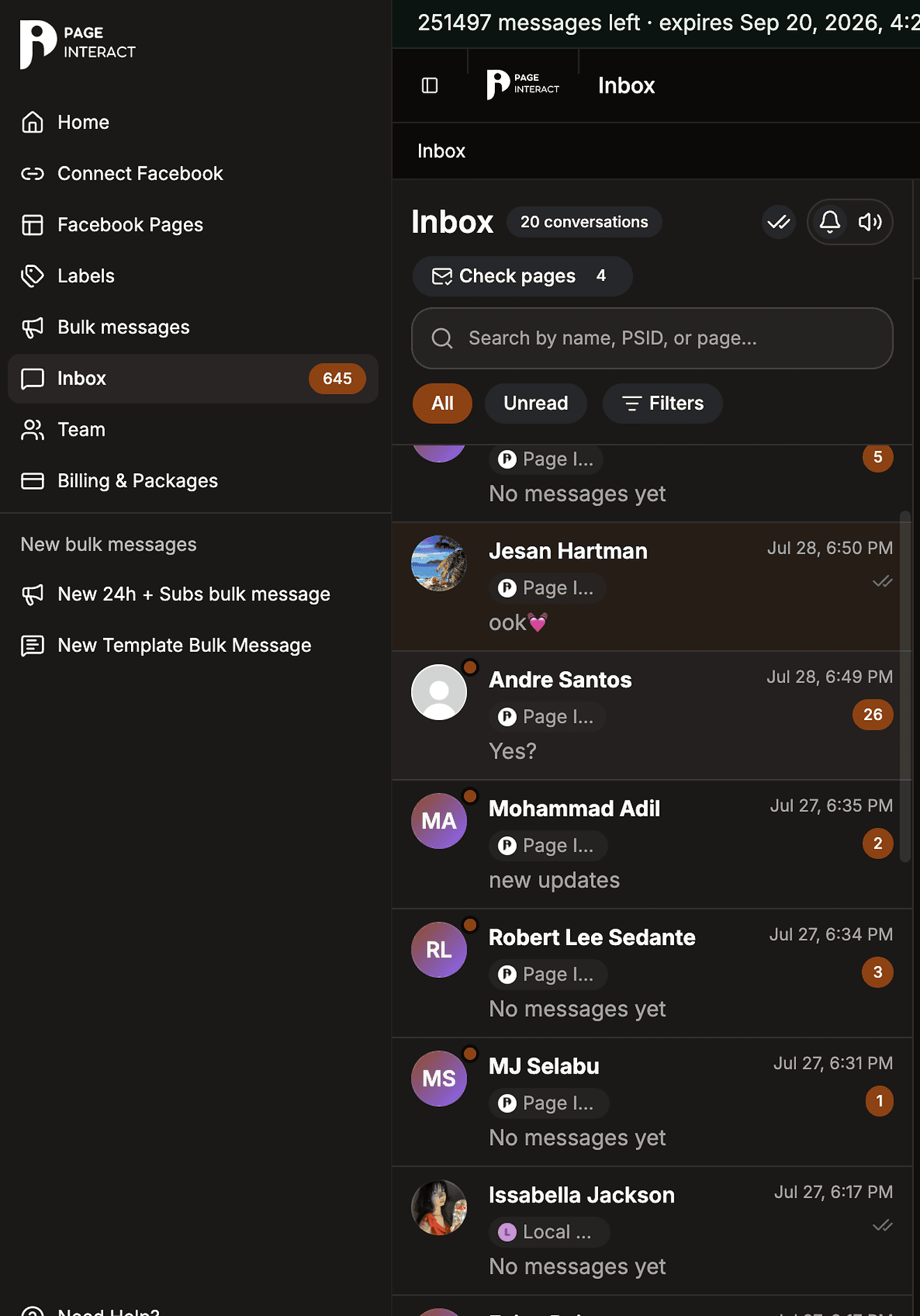
Every row tells you four things:
Who wrote — their Facebook name and profile picture.
Which Page they wrote to — which matters when the same person messages two of your Pages.
The last thing said, trimmed to one line.
An orange number — how many messages you have not read.
This is not a copy you have to keep in step with Facebook. It is the same conversation: replies you send here show up in Messenger, and replies your team sends from Meta Business Suite show up here.
Before you start
A Facebook account connected to Page Interact, with at least one Page shared.
One finished Sync Leads run on that Page, so your existing conversations are imported. After that, new messages arrive on their own.
If you are a team member rather than the workspace owner, inbox access has to be switched on for you, and you will only ever see the Pages you were given.
Step 1 — Open the Inbox
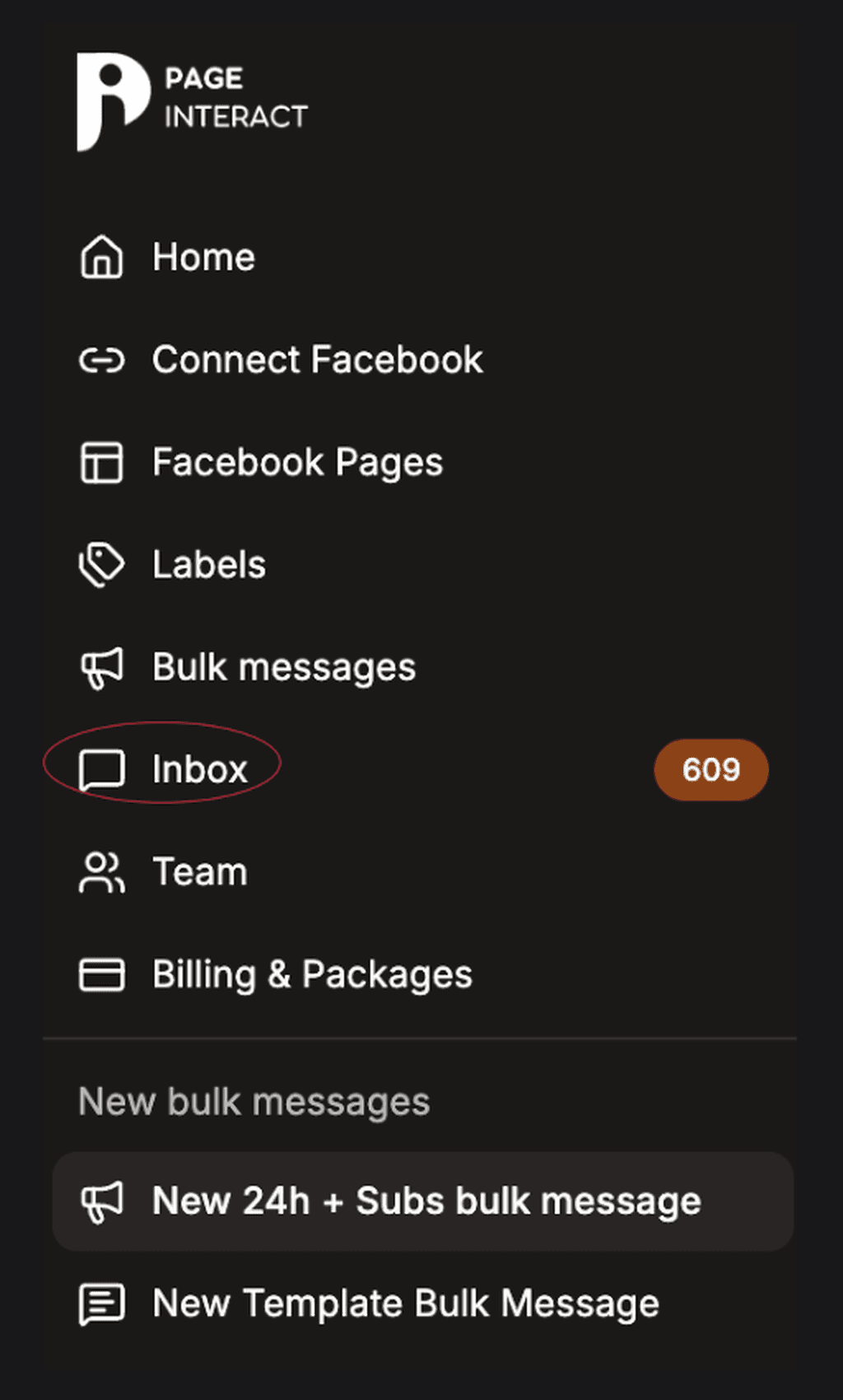
Click Inbox in the left sidebar. The number next to it is your unread count across every Page at once.
There is a second way in. On Facebook Pages, the Conversations link on a Page row opens the inbox already filtered to that one Page — useful when you only want to clear a single Page’s backlog.
Step 2 — Find the right conversation
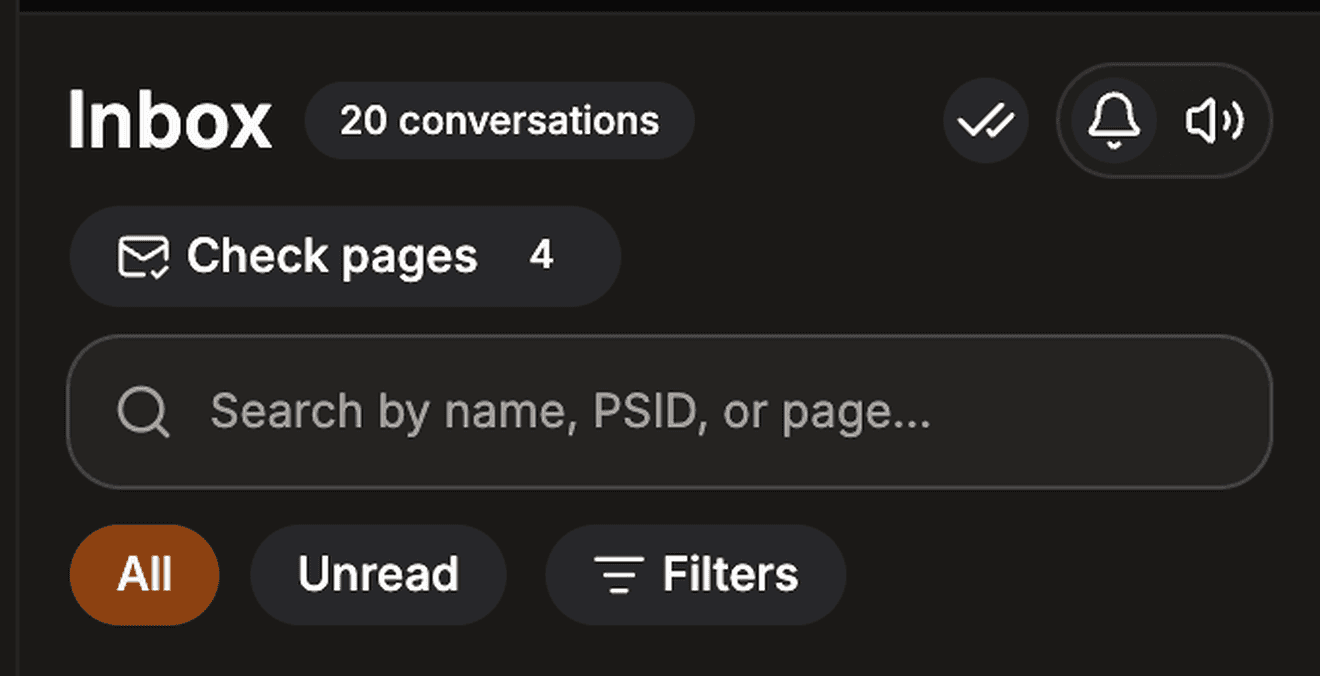
Three controls sit above the list, and between them they will find anyone.
Search matches a person’s name, their PSID, or a Page name. A PSID is the ID Facebook gives someone for your Page — you will see it on leads whose real name never came through. Start typing and the list narrows as you go.
All / Unread is the quickest filter there is. Unread leaves only the conversations with something still waiting on you.
Filters opens everything else.
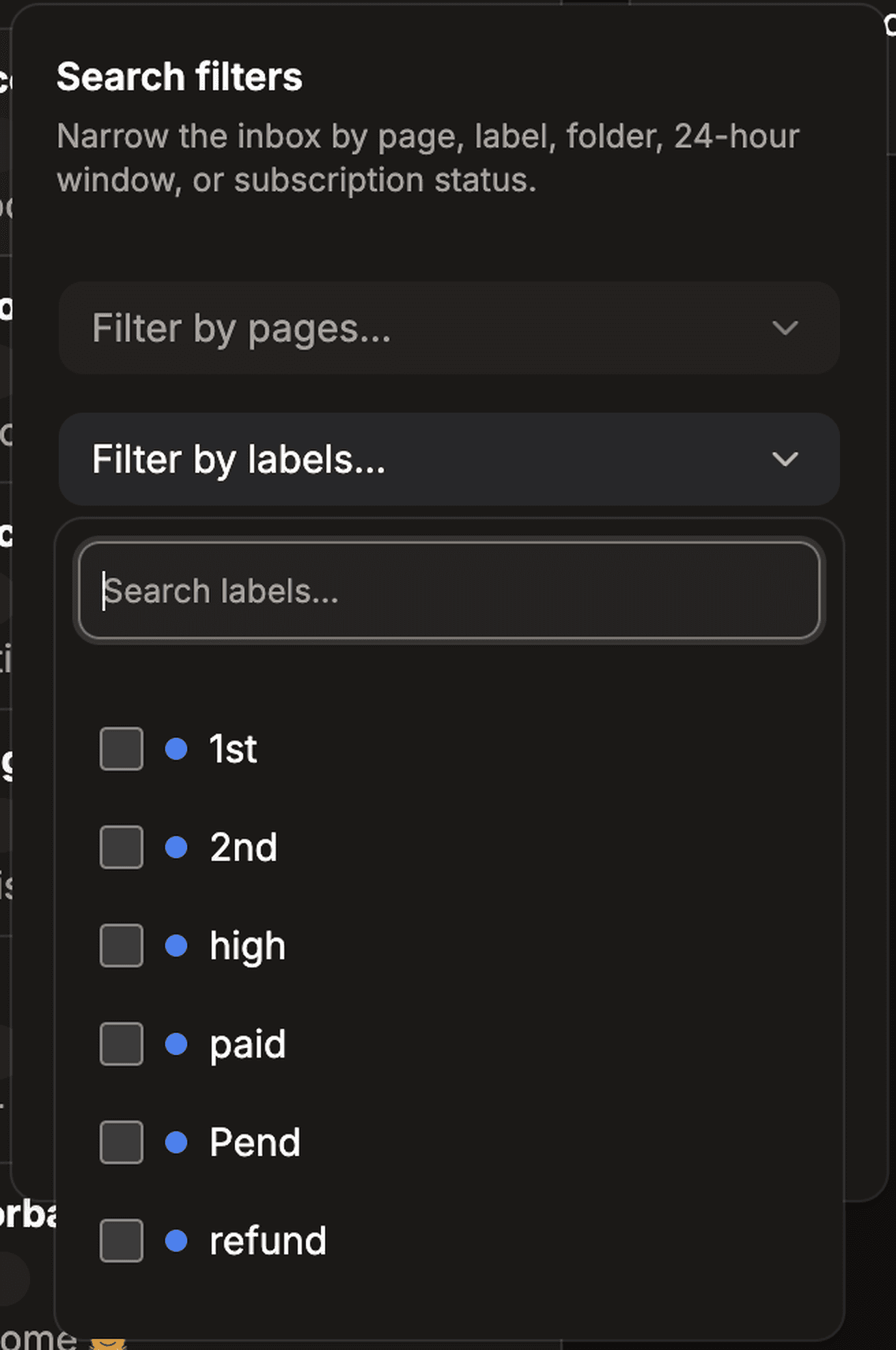
Filter | What it does | Reach for it when |
|---|---|---|
Pages | Limits the list to the Pages you tick | You run several Pages and want to work through one at a time |
Labels | Shows only leads carrying a label | You tagged a group as paid or refund and want just those people |
Folder | Inbox, Other, Spam or Done | Someone is missing from the main list — check Spam and Other |
24-hour window | Within 24 hours, or Outside 24-hour window | You want the people you can still reply to with ordinary text |
Subscription status | Subscribed or Unsubscribed | Only appears if Marketing Messages is switched on for your account |
Everything you pick is written into the page address, so a filtered inbox can be bookmarked or sent to a colleague and it opens the same way for them. The grey line under the filters spells out in plain words what you are currently looking at, which saves a lot of confusion when the list looks unexpectedly short.
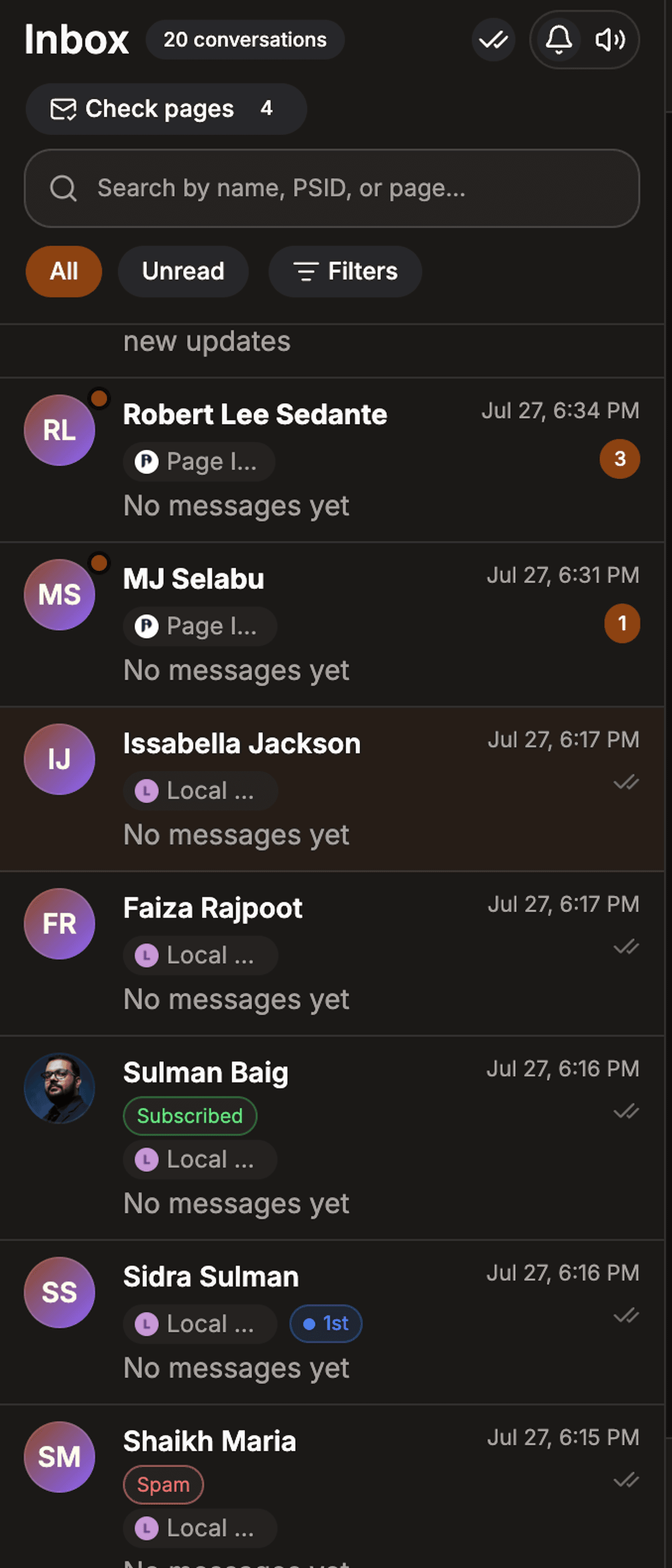
In the list itself, small badges do the rest of the explaining: Spam for anything Facebook filed there, Subscribed for people who accepted a Marketing Messages opt-in, and your own labels in whatever colour you gave them.
Step 3 — Reply while the 24-hour window is open
Facebook lets a business reply freely for 24 hours after the customer’s most recent message. Inside that window you can write anything you like, as often as you like.
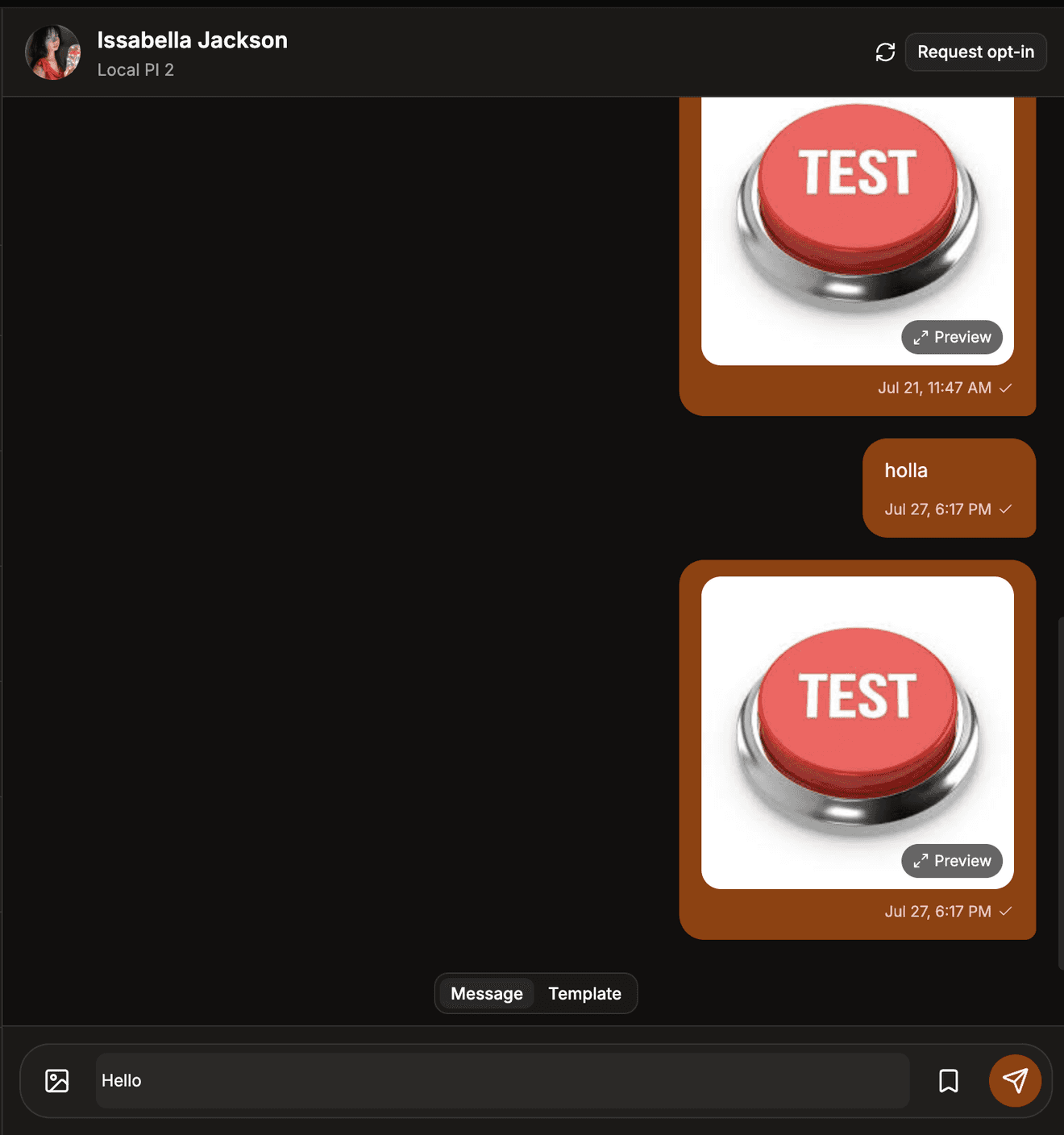
Click a conversation to open it. The thread loads with the newest messages at the bottom. Scroll up and older history is pulled in from Facebook as you go.

Type in the box and press the send arrow. Your message appears straight away marked as sending, then switches to sent once Facebook confirms it. To send a picture, use the image button on the left — PNG, JPG or WebP, up to 5 MB.
If the window has already closed, the conversation is marked Reply window closed and ordinary text will not go through. That is Facebook’s rule rather than ours, and the next step is how you get around it legitimately.
If your balance has run out, the reply box is replaced by You are out of messages. Buy a package to keep replying. Top up on Billing & Packages and the box comes straight back.
Step 4 — Reply after the window closes, with a template
Outside the 24 hours Facebook only accepts pre-approved utility templates: transactional messages such as order updates, appointment reminders and account alerts. Promotions are not allowed here, and using a template for marketing is the fastest way there is to get a Page restricted.
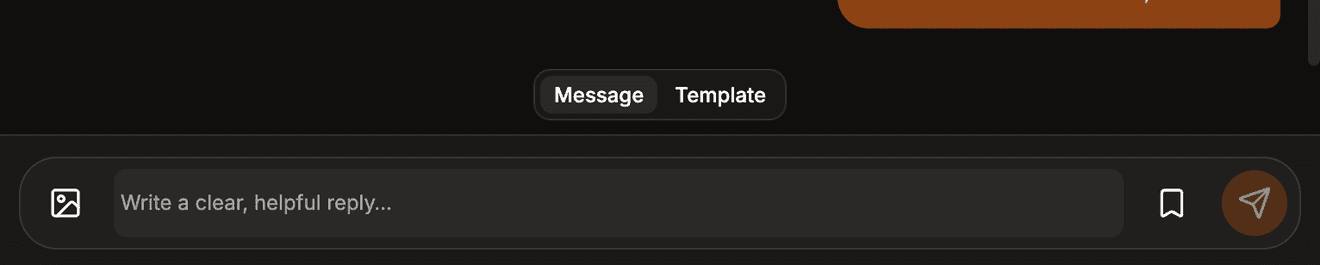
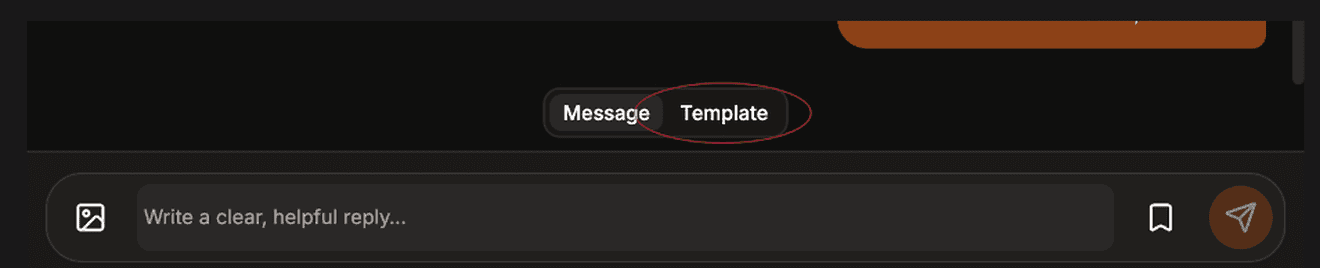
At the bottom of the thread, switch from Message to Template.

Click Choose a template. If nothing is listed yet, use Set up for this page — pick a starter and Page Interact copies it to that Page and submits it to Meta for approval for you.
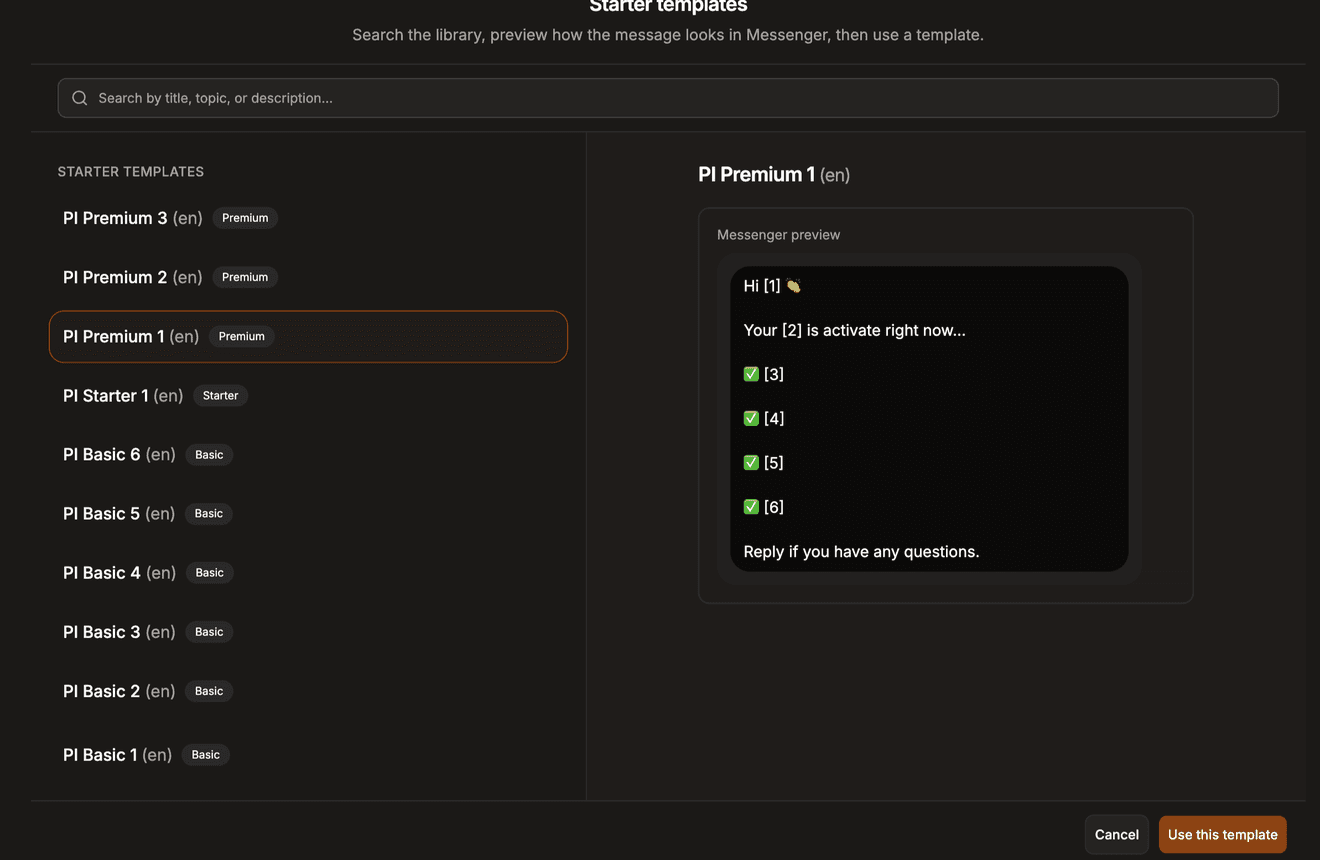
Once a template is approved, select it, fill in every variable, check the Messenger preview and press Send template. Approval usually takes a few minutes; until it lands you will see This template is still pending Meta approval. if you try to send.
If there is no Template tab on your screen at all, template messaging is not enabled for your account at the moment.
Step 5 — Save the replies you send over and over

Open Saved replies from the bookmark icon next to the message box.
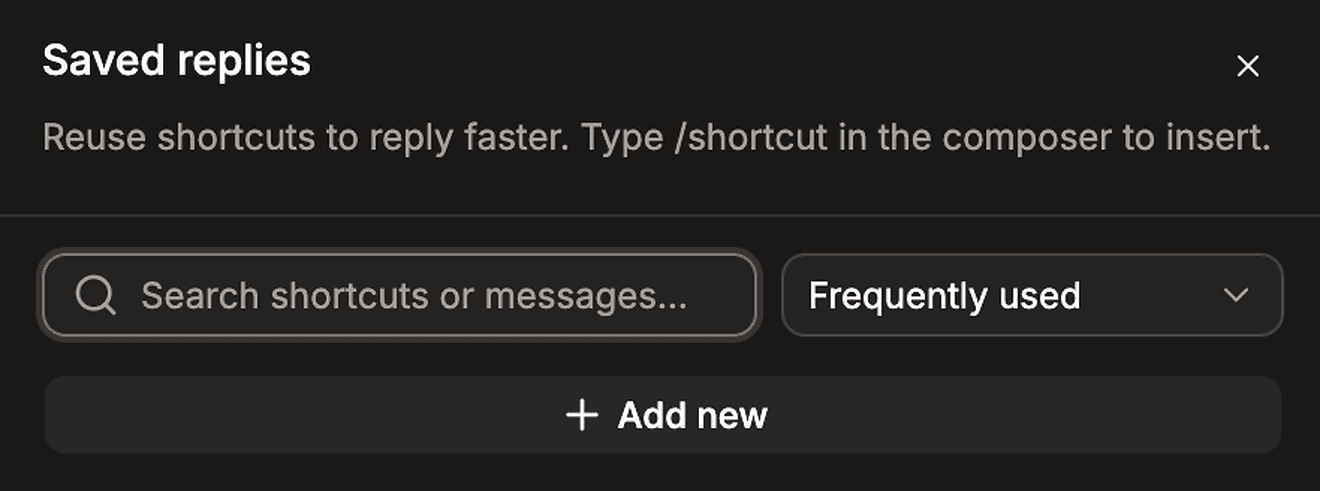
Add new creates one.
Give it a shortcut — one word such as
thanksorprice, at least three characters.Write the message, up to 1000 characters.
%{name}is swapped for the lead’s name when you use it.Choose whether it belongs to the whole workspace or just one Page.
To use one, type / followed by the first two letters of the shortcut in the message box. Suggestions appear as you type; pick one and the full text drops in, still editable before you send it.
Step 6 — Label leads so you can find them again
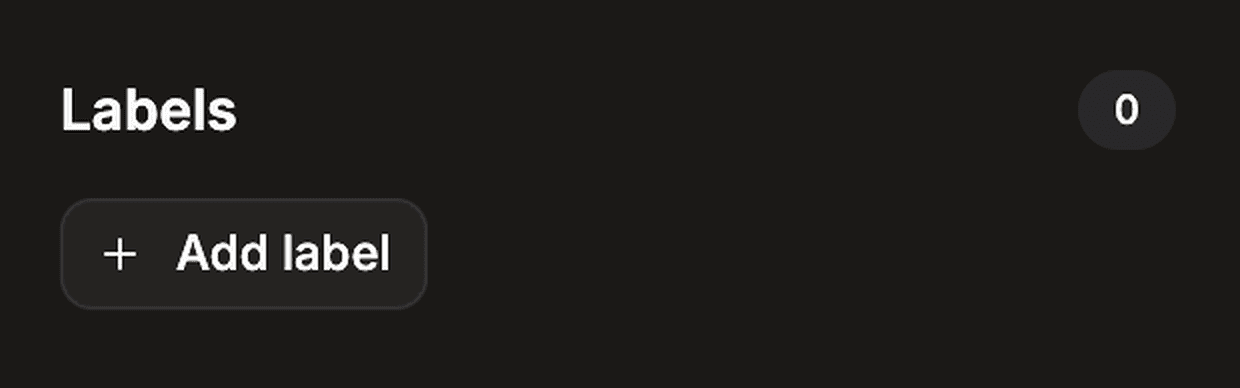
Open a conversation, find Labels in the lead details panel and click Add label.
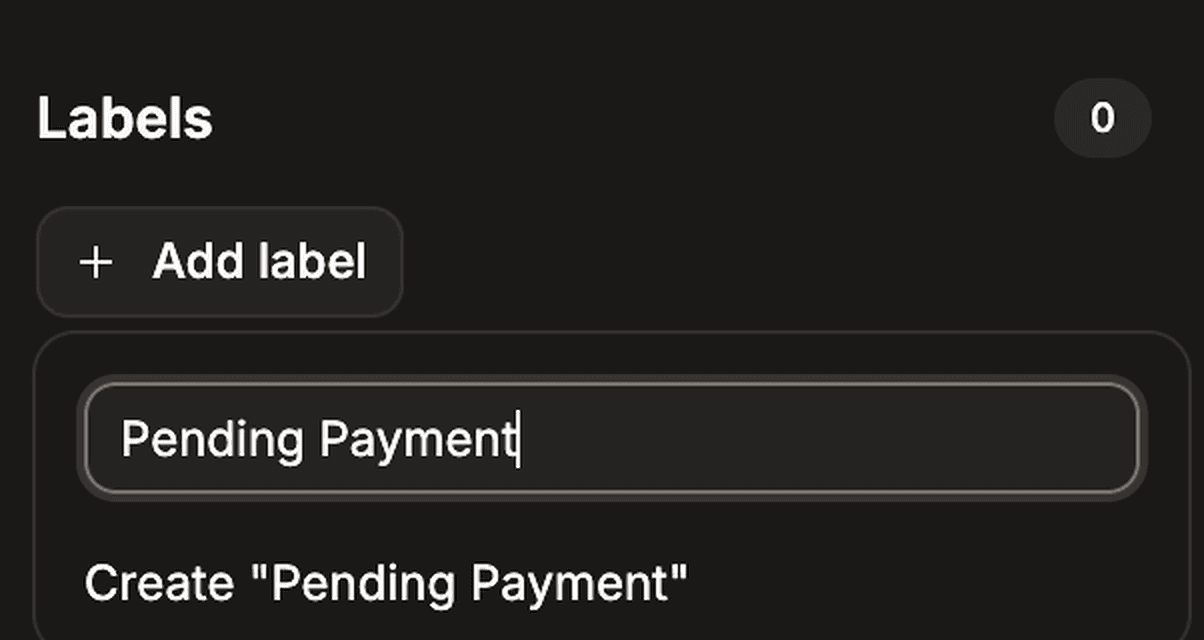
Type a name and create it on the spot, or pick one you already use.
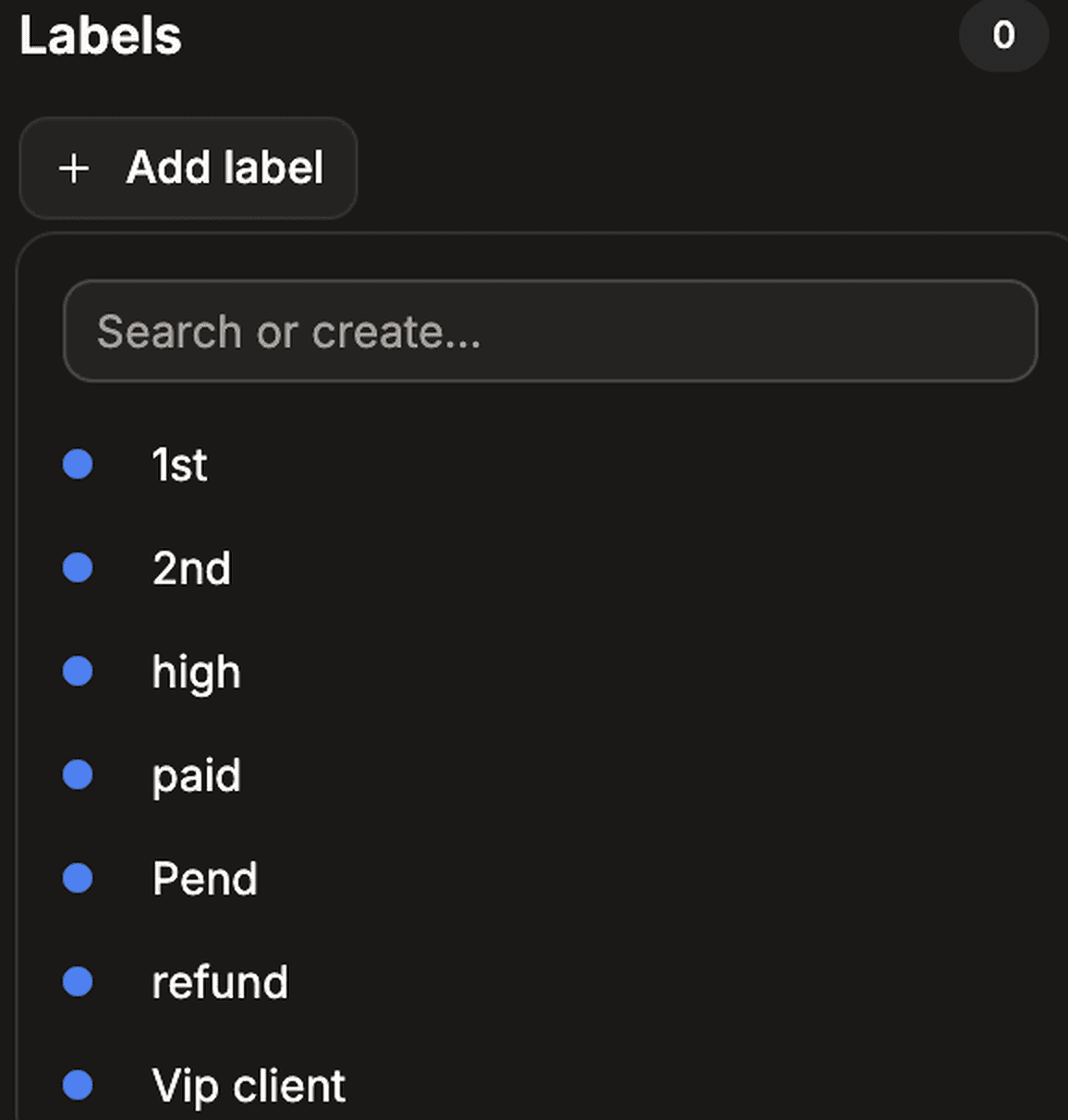
Labels belong to the workspace rather than to one Page, so the same set is available everywhere — and they are the same labels you target or exclude when you send a bulk message. Manage, rename and delete them on the Labels page in the sidebar.
Step 7 — Leave notes for yourself and your team
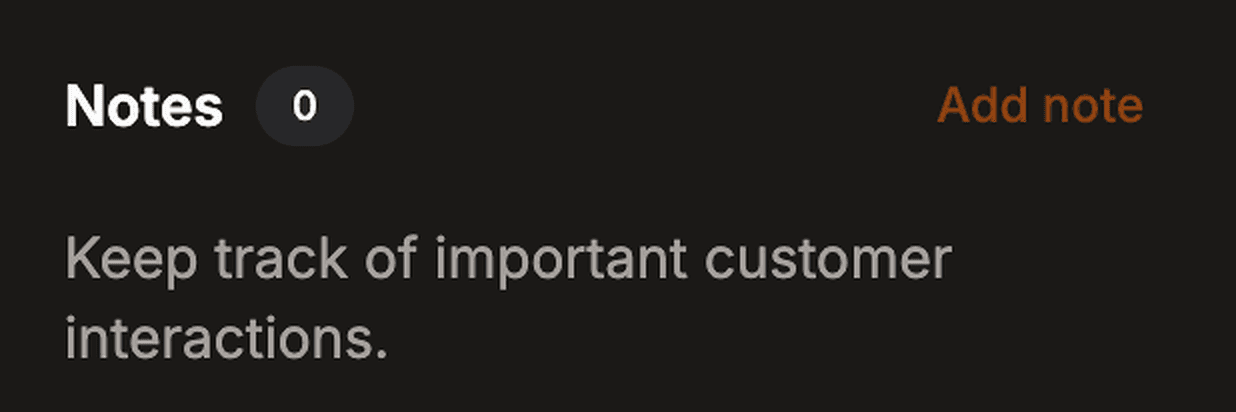
Click Add note, write what happened, click Save.
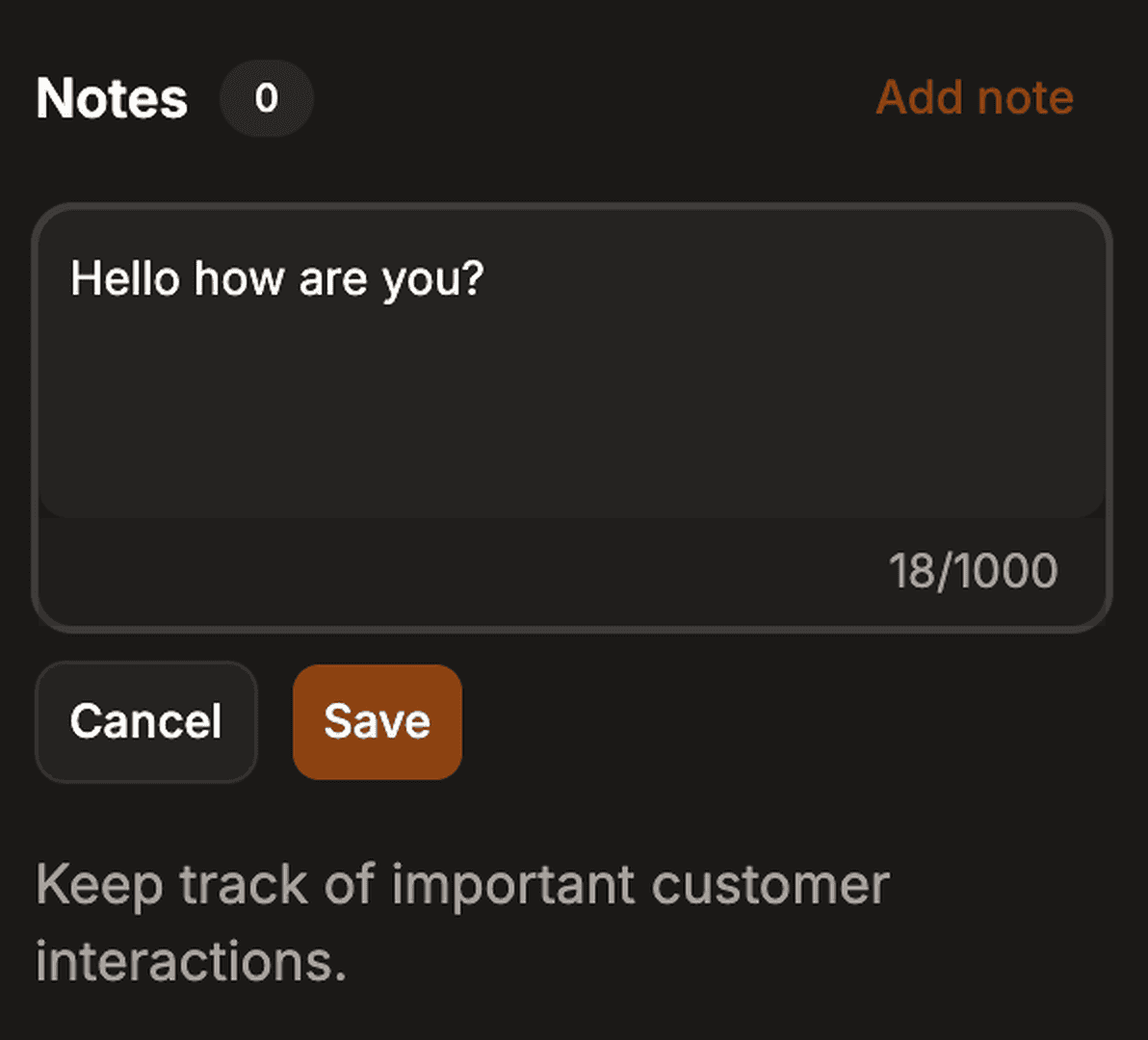
Notes are private. They are never sent to the customer and they never leave your workspace. You get 1000 characters, which is more than it sounds.
Anyone on your team with access to that Page can read, edit and delete notes — the point is a shared memory, not a personal one. Notes stay attached to the conversation even if you disconnect and reconnect the Facebook Page.
Step 8 — Read the lead details panel
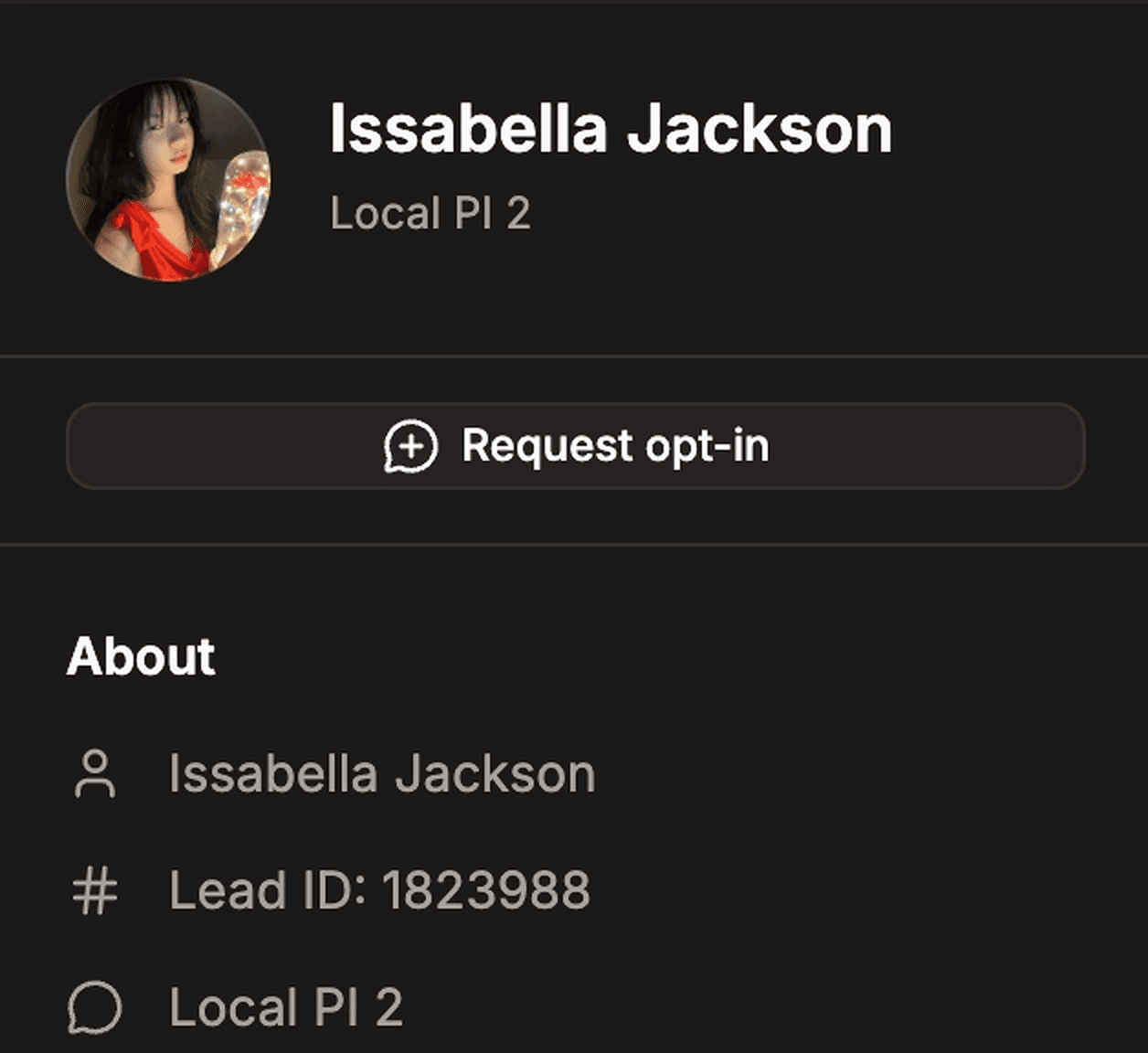
On a wide screen the panel sits to the right of the thread; on a phone open it with Lead details. It carries:
Their name, picture, and the Page they are talking to.
Lead ID — the number to quote if you ever contact support about this person.
Request opt-in — invites them to accept Marketing Messages, which is what lets you message them outside the 24-hour window later on.
Labels and Notes.
Marketing tokens — the opt-ins this person has accepted, and whether each one can be used right now.
Step 9 — Get told when a message arrives
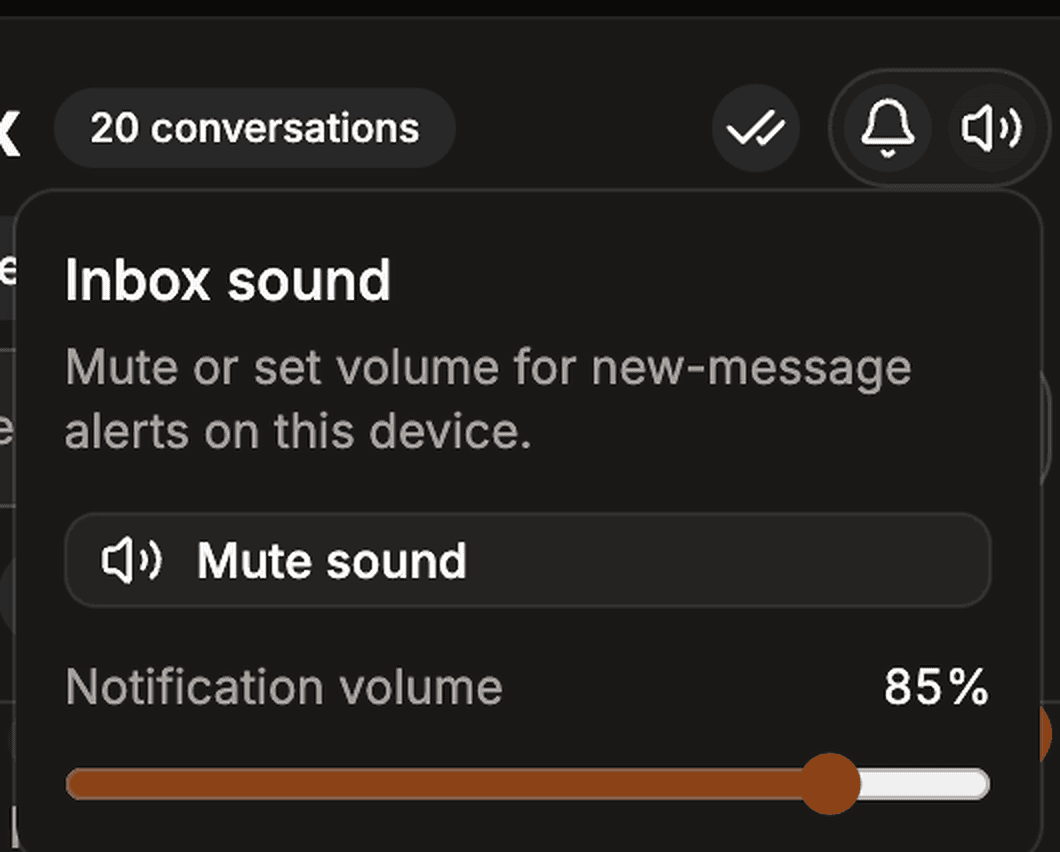
Two separate things, both in the inbox header, and they are easy to mix up.
The speaker icon controls sound. Mute it, or drag the volume down. This is set per device, so muting on your laptop does not mute your phone.
The bell turns on background notifications, which reach you even when Page Interact is not the tab you are looking at. Your browser asks permission the first time. If you blocked it at some point, you have to allow notifications for the site in your browser settings — the button alone cannot undo a block.
On an iPhone, background notifications only work once you have added Page Interact to your Home Screen. Safari will not deliver them to an ordinary tab, no matter what you allow.
Team members are notified only about the Pages they were given access to.
Step 10 — When a message has not arrived yet
Almost always messages push themselves to you within a second or two. On the rare occasion one does not, there are two buttons for it rather than a page refresh.

Check pages at the top of the list fetches the newest messages for a Page on demand. The number beside it is how many Pages you can check. It is deliberately rate-limited: ask twice in a row and you get Already checked recently for this page. Wait about 3 minutes, then try again.
Inside a conversation, the circular arrow does the same job for that one thread and pulls in anything from the last 24 hours that is not already showing. To go further back than that, just scroll up in the thread and older history loads from Facebook.
What a reply costs
What you send | Messages used |
|---|---|
A text reply in the inbox | 1 |
An image reply in the inbox | 1 |
A template message from the inbox | 1 |
Only messages Facebook actually accepts are counted — a failed send costs nothing. Your remaining balance sits in the banner at the top of the app, and in full on Billing & Packages.
Everything at a glance
Feature | What it is for | Where it lives |
|---|---|---|
Unified list | Every Page’s conversations in one place | Inbox |
Search | Find someone by name, PSID or Page | Box above the list |
Filters | Narrow by page, label, folder, 24-hour window, subscription | Filters button |
Message tab | Free-text reply inside 24 hours | Bottom of the thread |
Template tab | Approved utility message outside 24 hours | Bottom of the thread |
Saved replies | Reusable text inserted by typing | Bookmark icon by the message box |
Labels | Workspace tags, shared with bulk messages | Lead details panel |
Notes | Private team comments, up to 1000 characters | Lead details panel |
Sound and push | Per-device alerts for new messages | Speaker and bell in the header |
Check pages | Pull new messages on demand | Top of the list |
If something is not working
What you see | What it means | What to do |
|---|---|---|
Reply window closed | More than 24 hours since their last message | Send an approved template instead — Step 4 |
This Facebook page is disconnected — reconnect it and try again. | The Page’s permission expired or was removed | Reconnect on Connect Facebook, then try again |
Bulk paused | Meta has paused bulk campaigns for that Page | Inbox replies still work. Campaigns start again when the restriction lifts |
Meta has suspended this page from messaging. | Meta has blocked the Page from messaging altogether | Nothing in Page Interact can lift this — appeal to Meta from Business Suite |
Another Messenger app is handling this chat right now. | A different tool currently holds the conversation | |
You are out of messages. Buy a package to keep replying. | Your balance is zero | Buy a package on Billing & Packages |
Facebook is temporarily limiting messages — wait a few minutes and try again. | Too many requests reached Facebook at once | Wait a few minutes and send again — nothing is lost |
This template is still pending Meta approval. | Meta has not approved that template yet | Try again in a few minutes |
An empty inbox on a Page you know has messages | That Page’s conversations were never imported | Run Sync Leads on the Page, then come back |
Still stuck? Need Help? at the bottom of the sidebar opens email, Messenger and WhatsApp support. Quote the Lead ID from the lead details panel and we can find the exact conversation.