What came across from the old app — and what did not
Page Interact V2 runs on a brand new database. Your account came with you. Your Facebook connection did not.
What | Came across? | What that means for you |
|---|---|---|
Email and password | Yes | Sign in with exactly what you used before. No reset needed. |
Two-factor authentication | Yes | Your authenticator app keeps working. |
Message balance and expiry date | Yes | Your remaining messages are already in your wallet. |
Past purchases | Yes | Listed under Billing & Packages, with the same Sales IDs as before. |
Facebook connection | No | Connect Facebook again — Step 2 below. |
Facebook Pages and leads | No | They come back when you run Sync Leads — Step 3 below. |
Past campaigns and message history | No | The old app keeps its own record. V2 starts clean. |
One thing to check: expiry dates came across exactly as they were. If your package had already expired in the old app, it is still expired here — buy a package or activate a license key before you start sending.
Before you start
The email and password you used on the old Page Interact.
A Facebook account with full control of the Pages you want to message. Business support access is not enough.
A desktop browser for the first run. Everything works on a phone afterwards, but Facebook’s permission screen is far easier on a big screen.
Setting up takes about ten minutes, and most of that is waiting for your first lead import to finish.
Step 1 — Sign in to app-v2.pageinteract.com
Open app-v2.pageinteract.com. You will see Welcome back with Email and Password. Enter your existing Page Interact details and click Sign in.
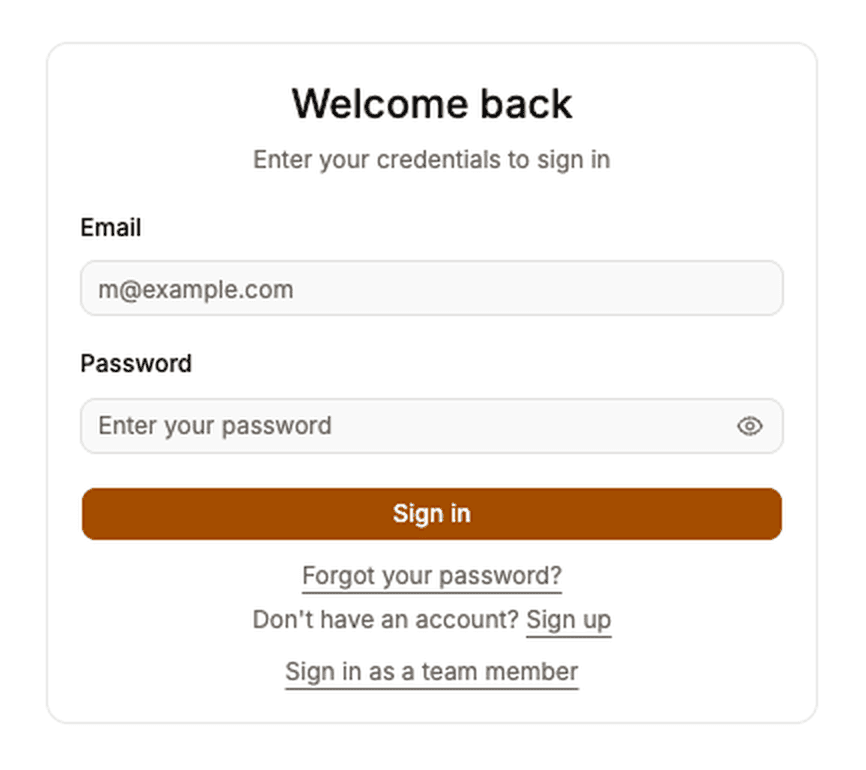
If two-factor authentication is on, the next screen asks for a code. Use the Authenticator app tab for a 6-digit code, or Backup code if you cannot reach your phone.
Forgotten your password? Click Forgot your password? and check your inbox, including the spam folder.
Team members do not sign in here. They use Sign in as a team member at the bottom of the form — see Step 9.
Step 2 — Connect your Facebook account
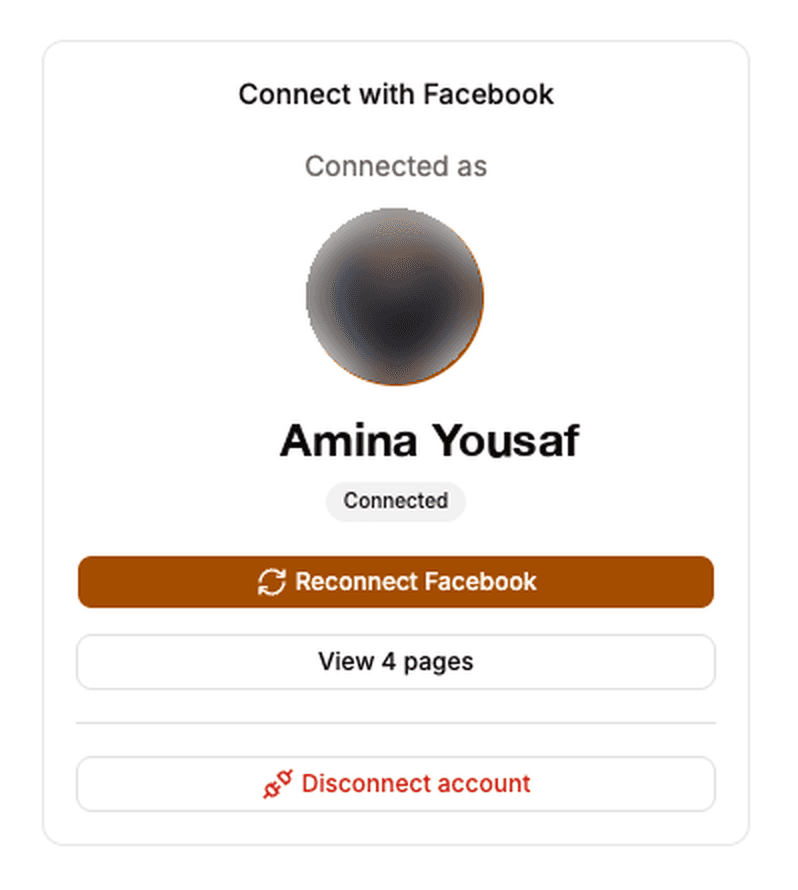
Signing in is not enough on its own. V2 needs its own permission from Facebook. Open Connect Facebook in the left sidebar and click Connect with Facebook.
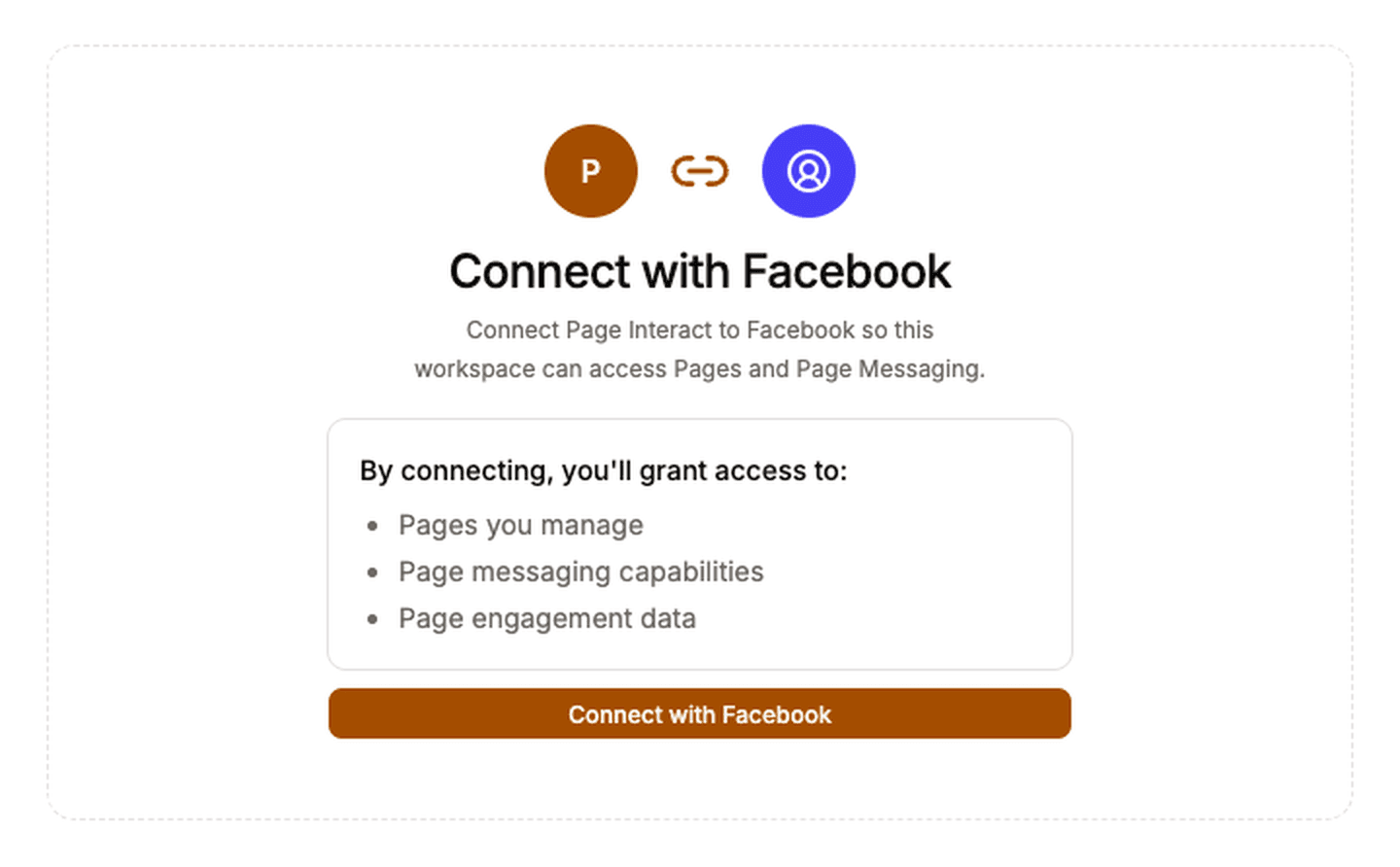
Facebook then asks which Pages to share. That choice happens on Facebook’s screen, not ours — tick every Page you plan to message, because a Page you leave out will not appear in Page Interact at all. If your Pages sit inside a Business account, grant access to those too.
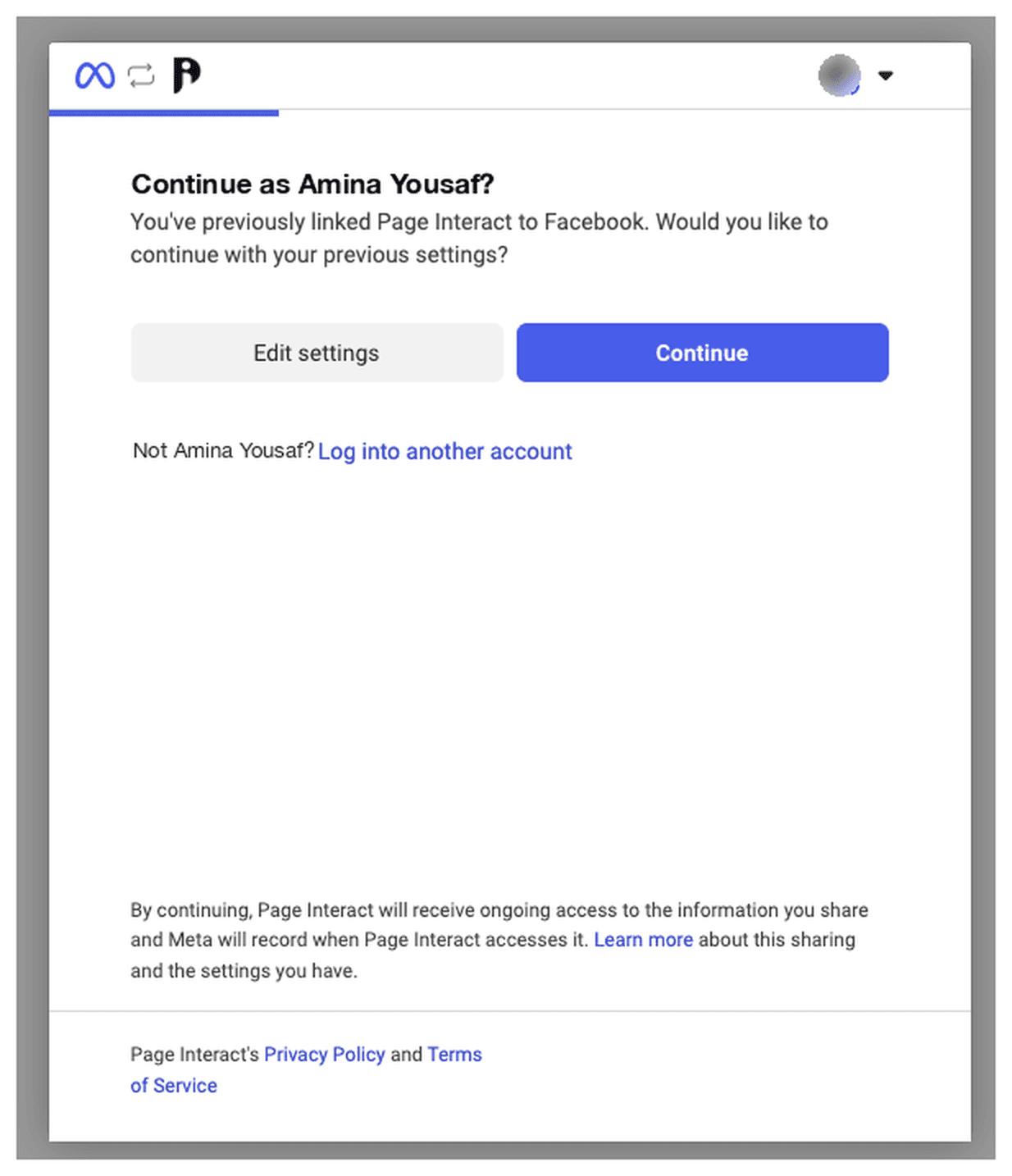
Page Interact asks for three things: the Pages you manage, Page messaging, and Page engagement data. When you come back you land on Facebook Pages with a Pages connected banner.
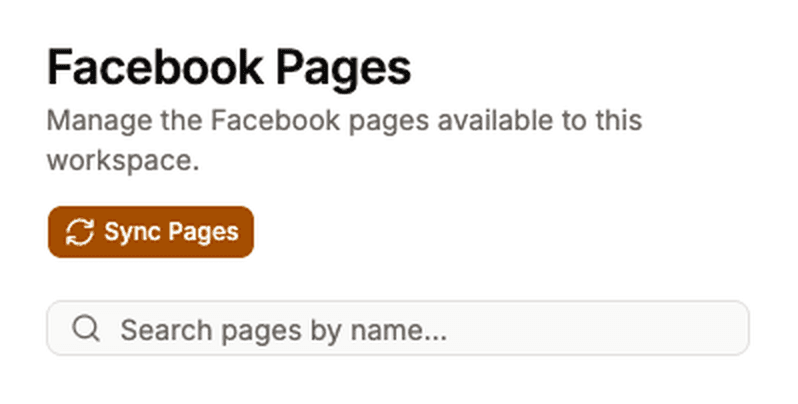
Cannot see a Page you expected? Click Sync Pages at the top of the screen. If it still does not show up, you are almost certainly not a full admin of it on Facebook.
To move Page Interact onto a different Facebook account later, use Disconnect account on the Connect Facebook screen and connect the new one. Your leads and conversations are kept, and come back when you reconnect the same Pages.
Step 3 — Import your leads
Your leads are your Messenger conversations, and nothing is imported until you ask for it.
On Facebook Pages, click Sync Leads on each Page. The first run walks your entire Messenger history — every folder, including spam and threads you can no longer reply to — so on a busy Page it takes a while. The row reports progress as it goes: Importing your full history — received 1,240 conversation(s) so far. You can leave the screen and it keeps running. Cancel stops it.
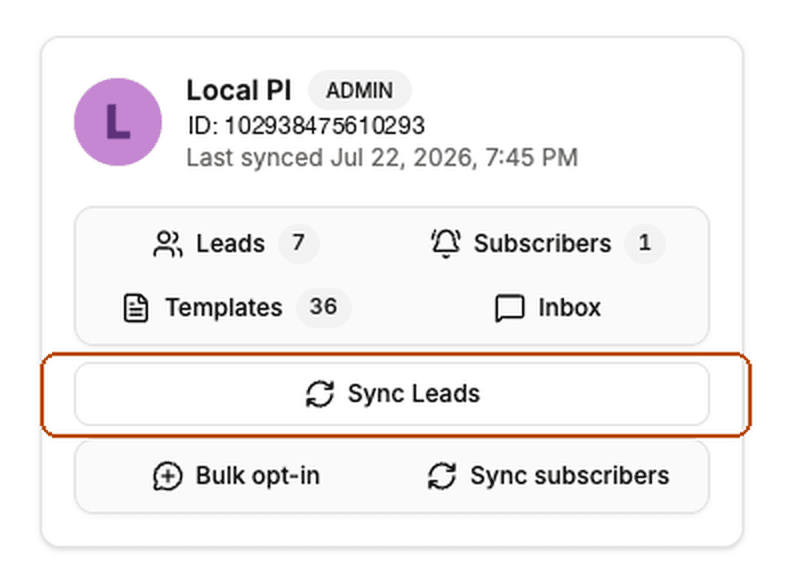
Sync Leads goes quiet for a moment after each run. The button counts down with Available again in …s — about two minutes by default. That is normal, not a fault.
Already up to date means nothing new has arrived since the last run. Also not a fault.
Later runs are much faster, because they only fetch what changed.
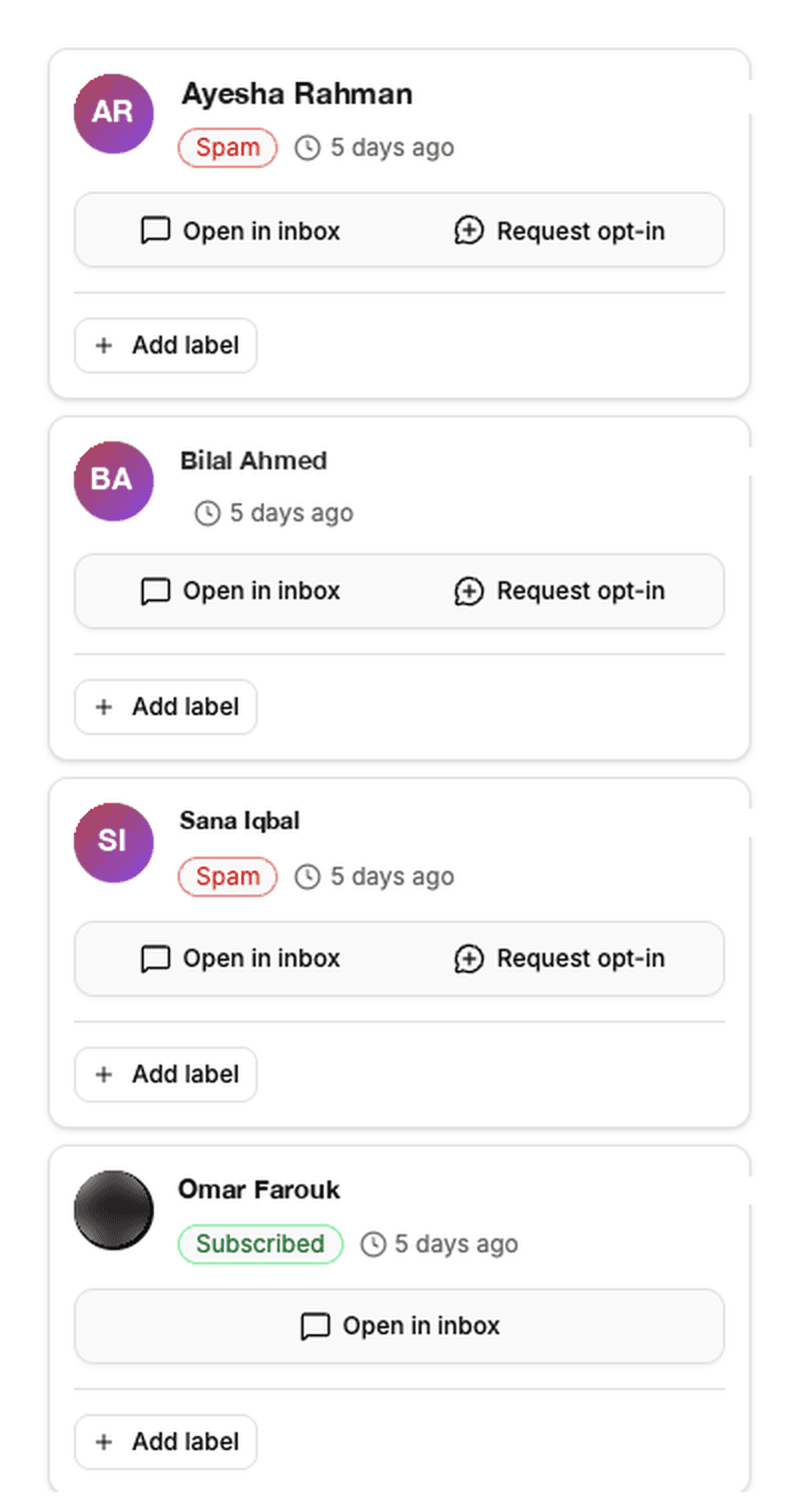
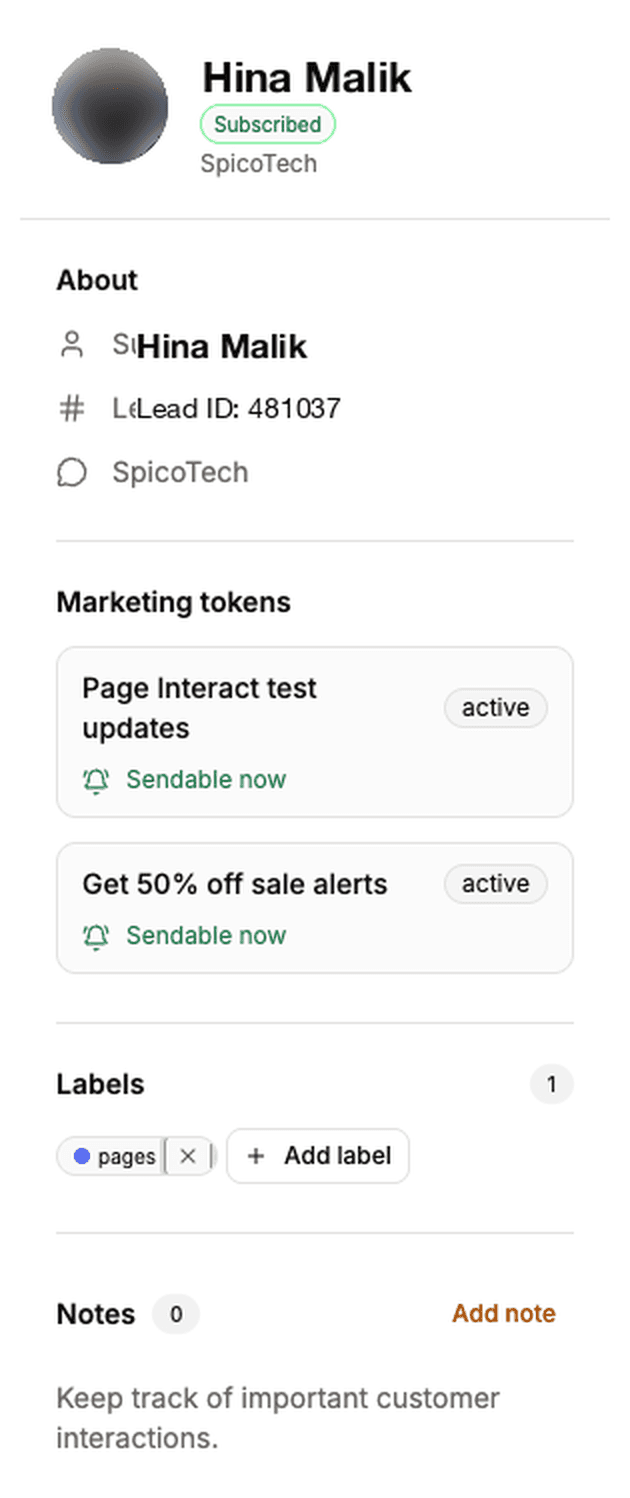
Click Leads on a Page row to see what arrived. You can search by name or PSID, and badges mark anyone in Spam or Done, or flagged Cannot reply.
Who you are allowed to message: the 24-hour rule
Meta decides who you can message, not Page Interact. This one rule explains most of what follows.
The clock starts when the customer messages you, not when you message them. For 24 hours after someone’s last message to your Page you can send them anything — text, an image, or both. After that the window closes and an ordinary message will not be delivered.
There is one way through a closed window: a utility template, a message Meta reviews and approves in advance. Templates are for transactional content — order updates, appointment reminders, account alerts — not promotions.
That is why Page Interact has two kinds of bulk message.
Kind | Who it reaches | What you can send |
|---|---|---|
24h + Subs bulk message | People who messaged your Page in the last 24 hours, plus opted-in subscribers if you tick the box | Text, image, or image and text |
Template Bulk Message | Everyone you can still reach, whatever the window | One approved utility template |
Step 4 — Send your first bulk message
Click New 24h + Subs bulk message in the sidebar. There are three steps.
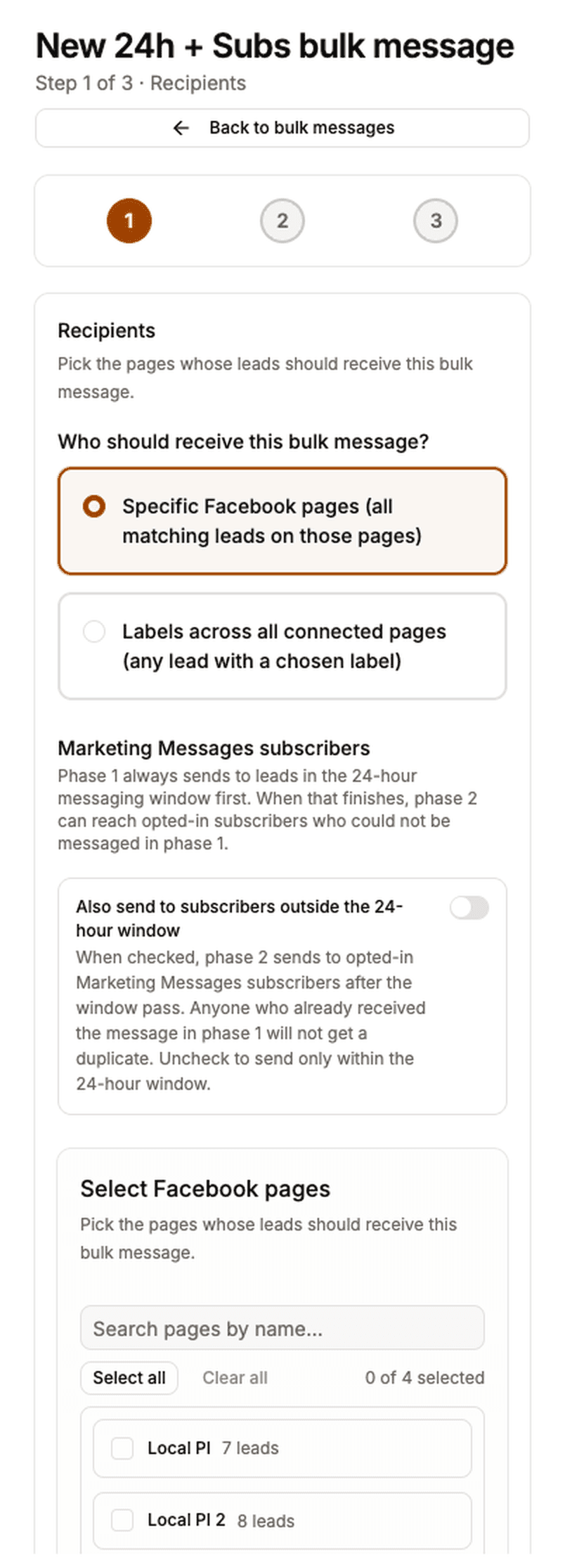
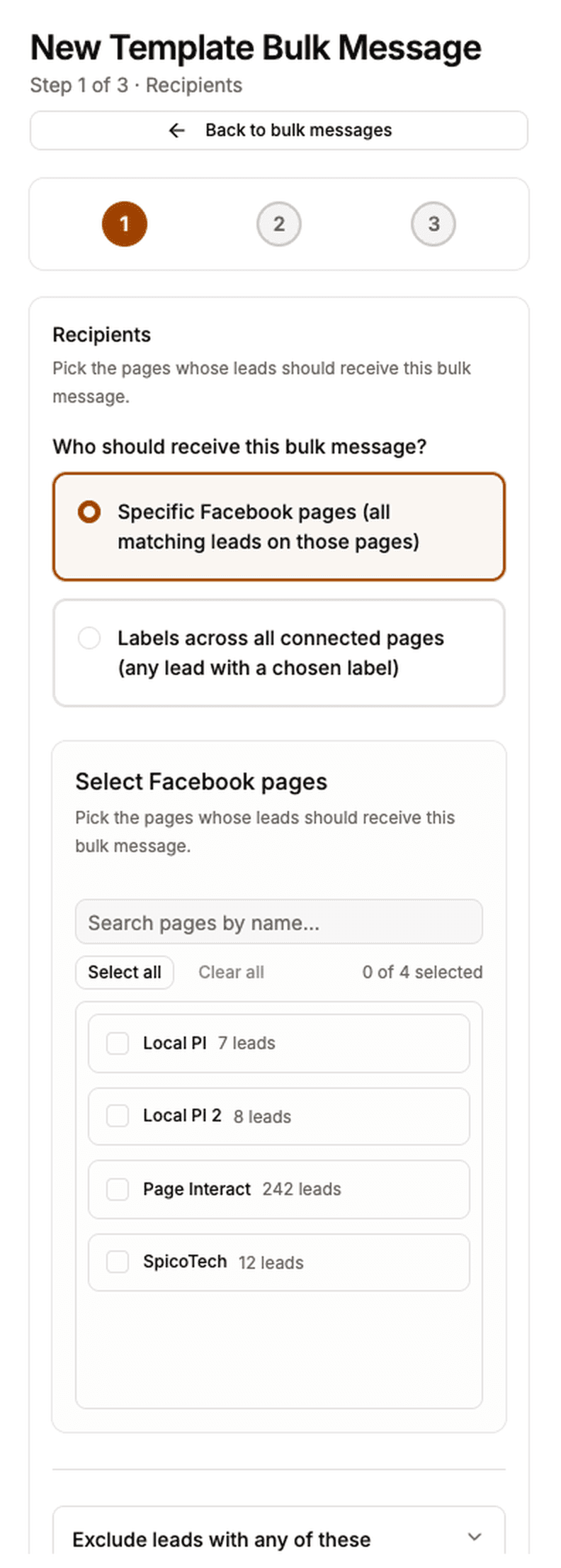
Recipients. Choose how to pick your audience:
Specific Facebook pages (all matching leads on those pages) — choose Pages, and everyone on them who is inside the window receives it.
Labels across all connected pages (any lead with a chosen label) — every connected Page is included automatically and people are matched by label.
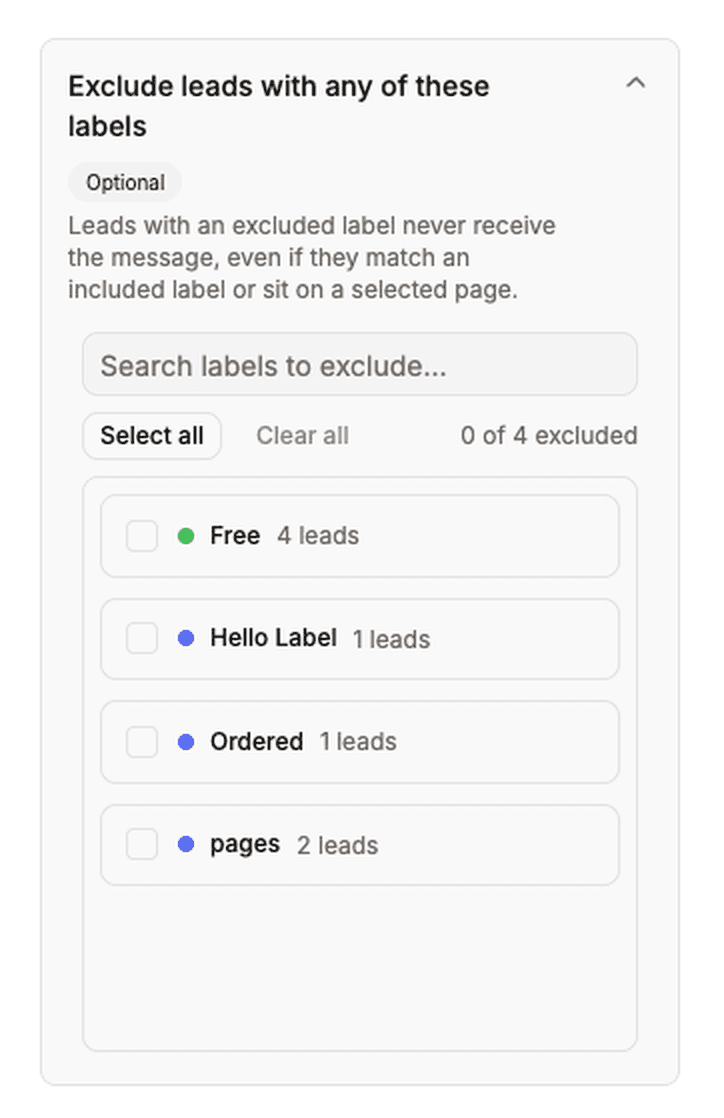
Either way you can open Exclude leads with any of these labels. Exclusions always win: someone carrying an excluded label never receives the message, even if they match on the other side.
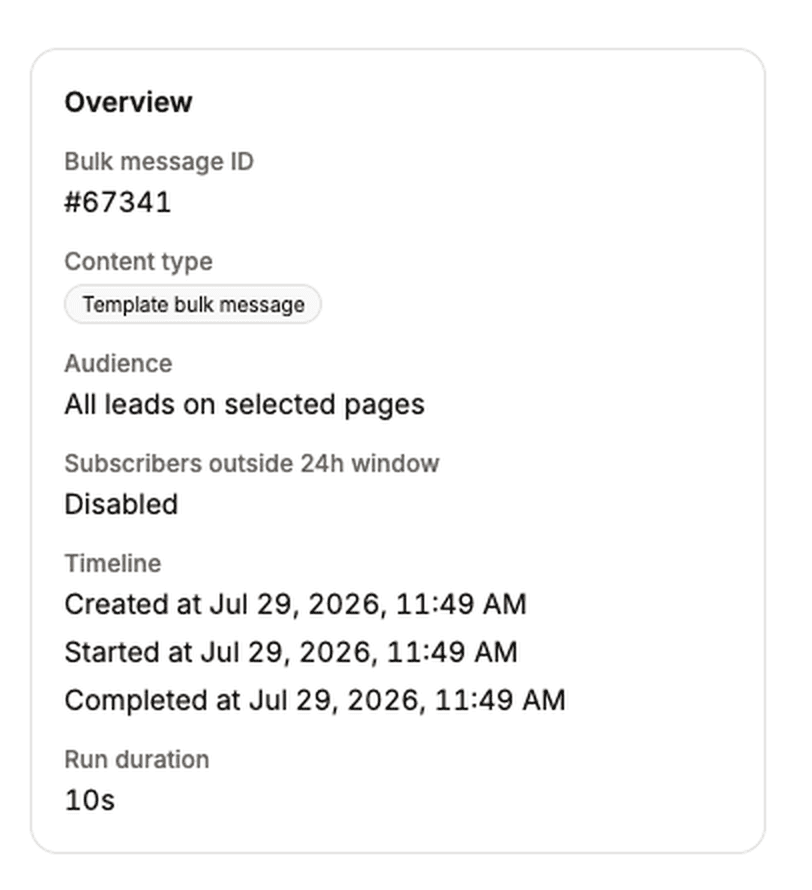
Tick Also send to subscribers outside the 24-hour window to add a second pass. Phase 1 always sends to everyone inside the 24-hour window first. When that finishes, phase 2 goes to opted-in subscribers who were not reached — and nobody receives the message twice. The next section explains how people become subscribers.
Compose. Pick Text only, Image only or Image + text. The Insert %{name} button drops in the person’s Messenger name. Images can be up to 5 MB, as JPEG, PNG or GIF.

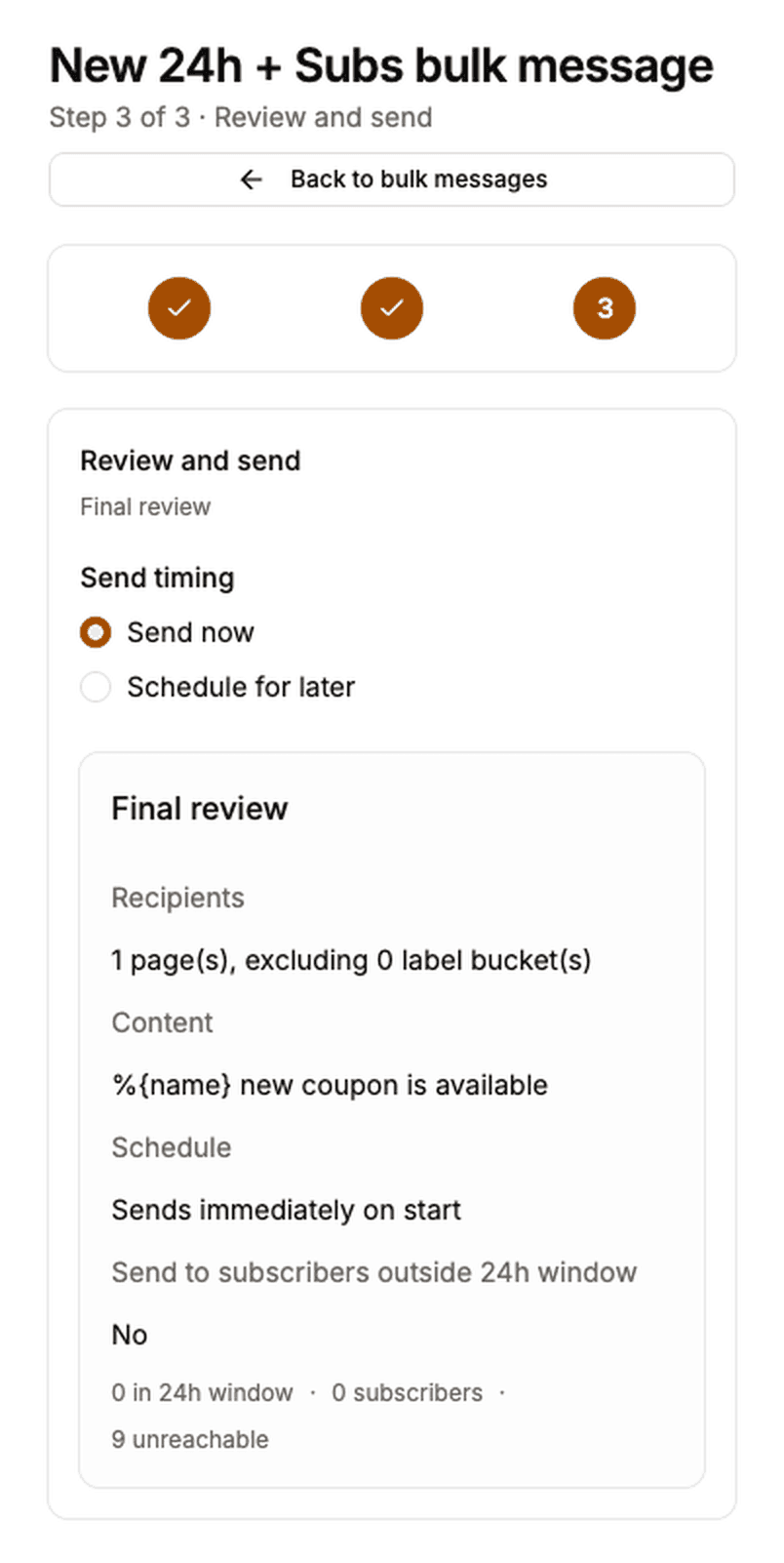
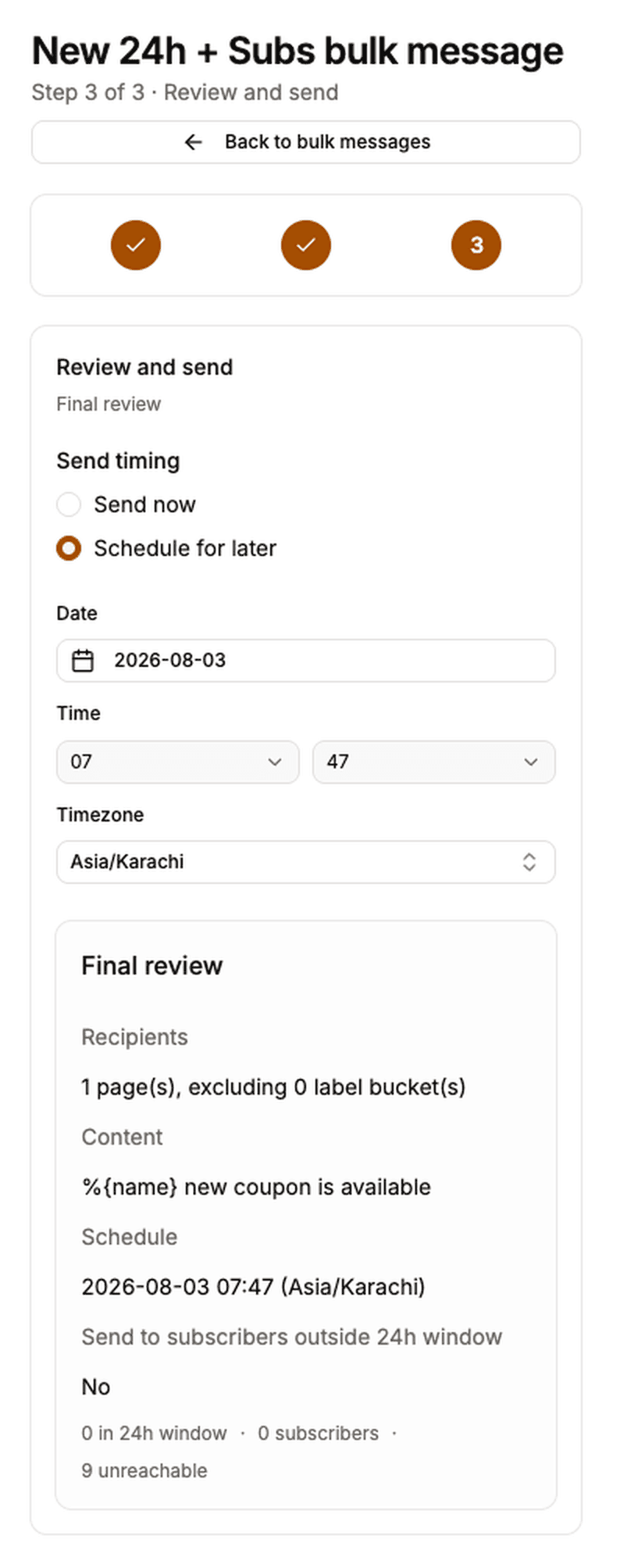
Review and send. Check the summary, then either Send now or Schedule for later with a Date, Time and Timezone. The timezone matters — 9:00 AM means 9:00 AM where you chose, not wherever the server happens to be.
If your balance will not cover everyone, the review step tells you before you start.
Step 5 — Reach people outside the window with a template
Click New Template Bulk Message. Recipients works exactly as above.
On the Template step, choose from Starter templates — pre-written utility templates you can preview as they will appear in Messenger — and fill in the variables once. The same values are used on every Page. Before sending you must tick the confirmation that this send follows Meta’s utility template policy.
Page Interact then creates and submits an approved copy of that template on every Page you selected. While that happens the status reads Setting up templates and you see: We are working on getting this template approved on your pages. This usually takes a moment — you can pause or cancel anytime. Most Pages clear in well under a minute. A Page still not approved after about five minutes is skipped, and the rest of the send carries on without it.
Some Pages cannot receive template messages at all. Those are listed under Excluded from this template bulk message on the Recipients step, each with a reason — Restricted by Meta, Not approved for templates, Market not eligible, Needs reconnecting and so on.
Marketing Messages: reaching people outside the window
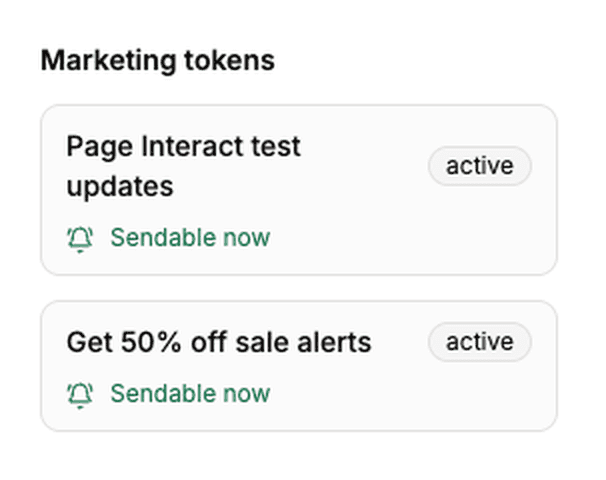
A utility template is not the only route past the 24-hour window. You can also ask someone for permission to keep messaging them. Meta calls this a Marketing Messages subscription. It does not mean you can message them whenever you like — a subscription lets you send one message every 48 hours, without waiting for them to write to you first.
Ask from the leads list or from a conversation in the Inbox with Request opt-in. The person gets a card in Messenger with your title and a button, and tapping it subscribes them. To ask a lot of people at once, use Bulk opt-in on the Facebook Pages row — it goes to every eligible lead on that Page.
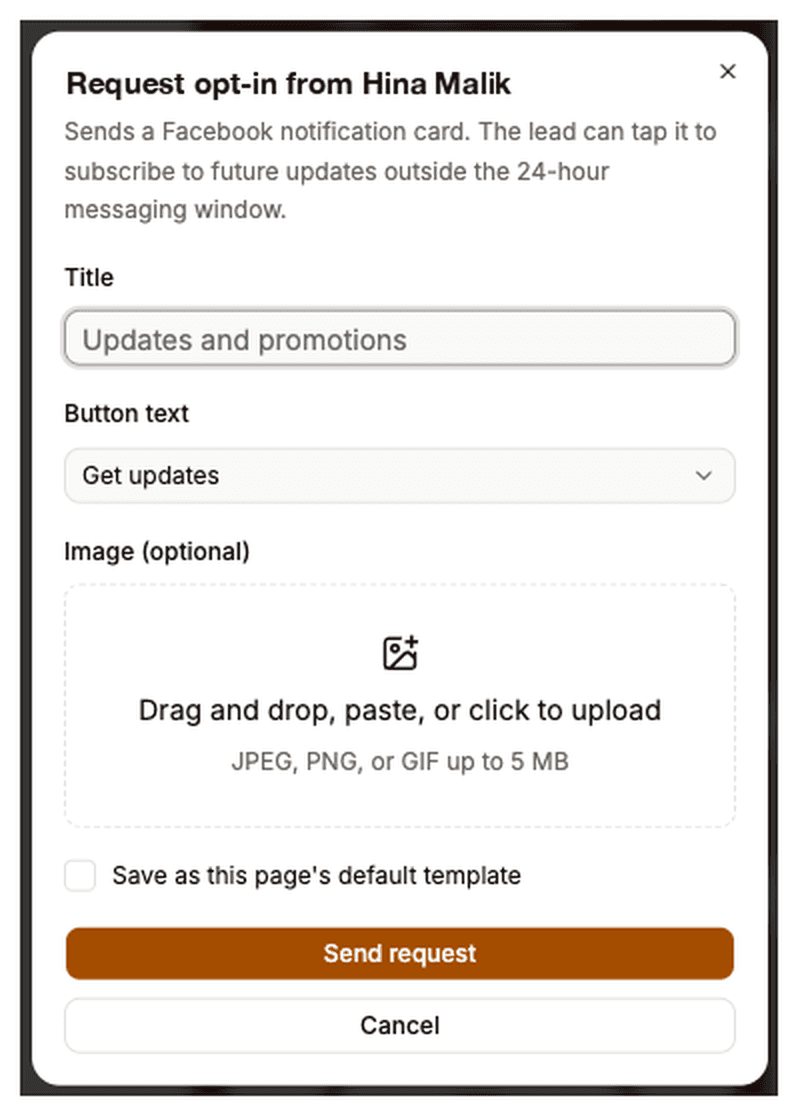
Only people inside the 24-hour window can be asked, because the request itself is a message.
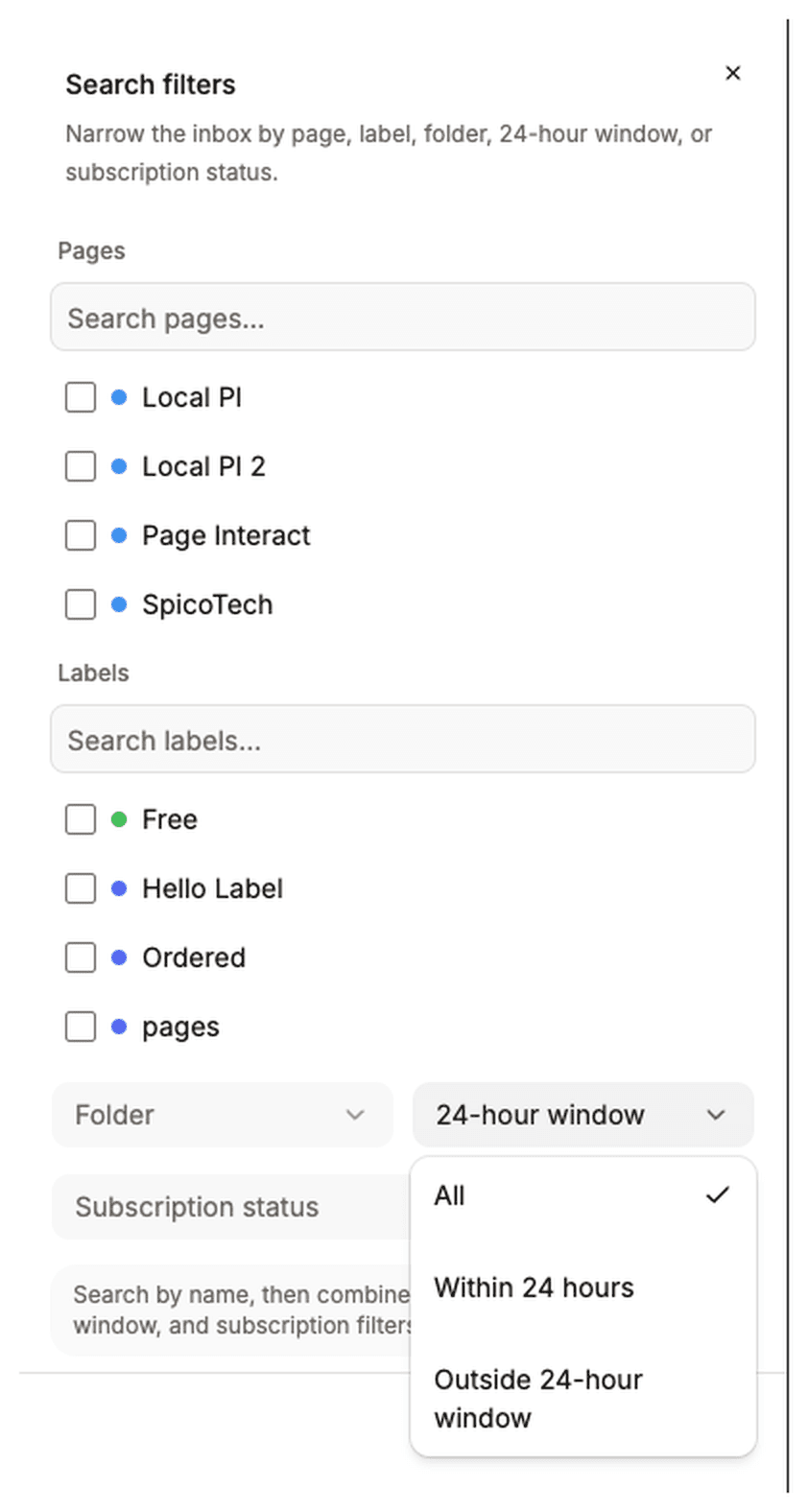
Each lead carries an opt-in badge in the leads list, and you can filter the Inbox by Subscription status — Subscribed or Unsubscribed.
Subscribers on a Facebook Pages row lists everyone who has opted in for that Page.
One message every 48 hours per subscriber. Page Interact holds back anyone who was messaged inside that window, so a subscriber is not reachable on any given day.
With subscribers in place, the review step of a bulk message shows the split before you commit: how many people are in the 24-hour window, how many are subscribers, and how many cannot be reached at all.
Step 6 — Watch it go out
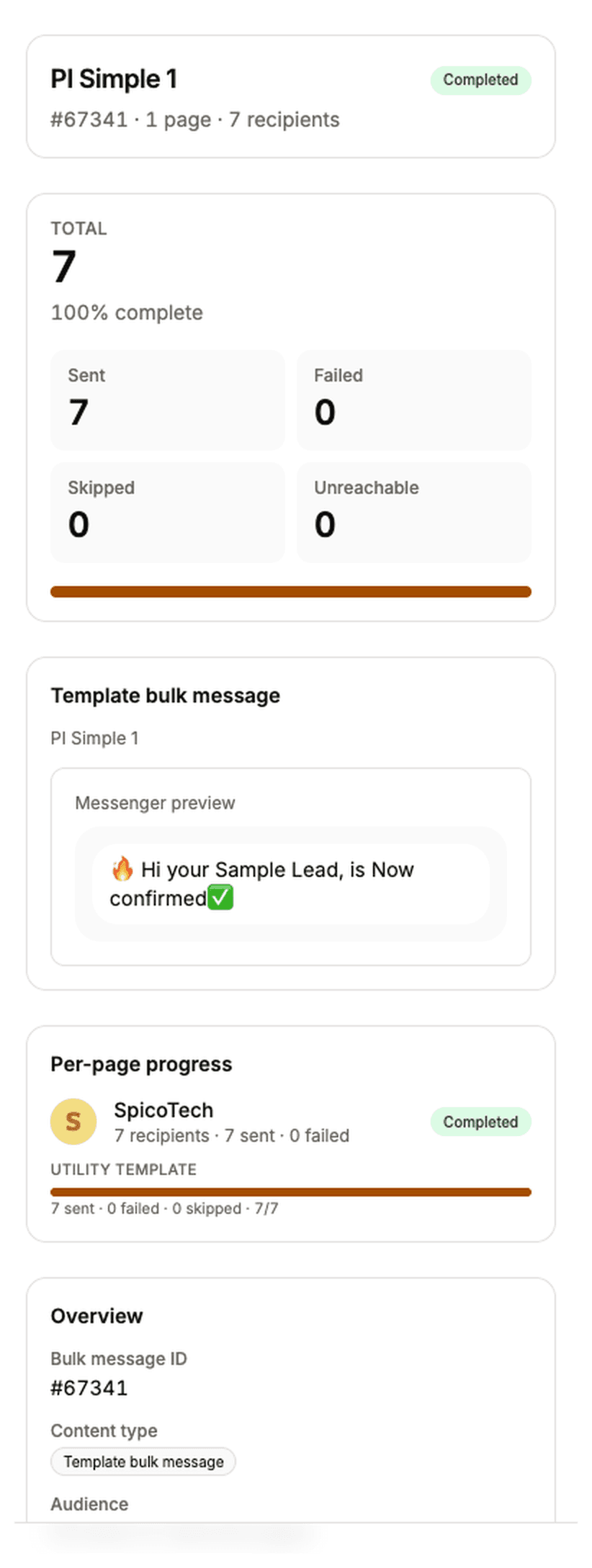
Open a bulk message to follow it. The status moves through Syncing leads, then Setting up templates for a template send, then Sending, then Completed.
Four numbers tell you what happened:
Sent — Meta accepted the message for delivery.
Failed — something went wrong. The error is shown against the Page it happened on.
Skipped — never attempted, usually because the person was filtered out.
Unreachable — cannot receive messages right now: a deactivated account, a privacy block, or a chat another Messenger app is controlling.
A high Unreachable count on Pages that also use another Messenger tool almost always means thread control. Here is the two-minute fix.
Step 7 — Reply in the Inbox
Inbox gathers live Messenger conversations from every connected Page into one list.
Narrow it with the All and Unread pills, or open Filters for Pages, Labels, Folder (Inbox, Other, Spam, Done) and 24-hour window (Within 24 hours, or Outside 24-hour window).
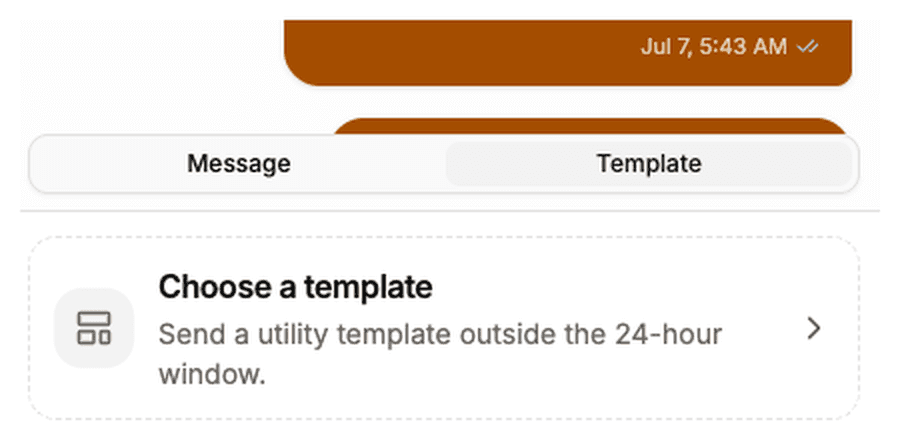
The composer has two tabs. Message is an ordinary reply with an optional image, and works inside the 24-hour window. Template sends a utility template, and works outside it.
A few things worth knowing about:
Check pages pulls the newest messages from Facebook on demand.
The ⟳ button on a conversation (Sync messages from Facebook) refreshes that single thread.
Saved replies: type
/followed by your shortcut. Put%{name}in the text to insert the person’s name.Notes are private to your team and are never sent to the customer.
Mark all read clears every unread badge at once.
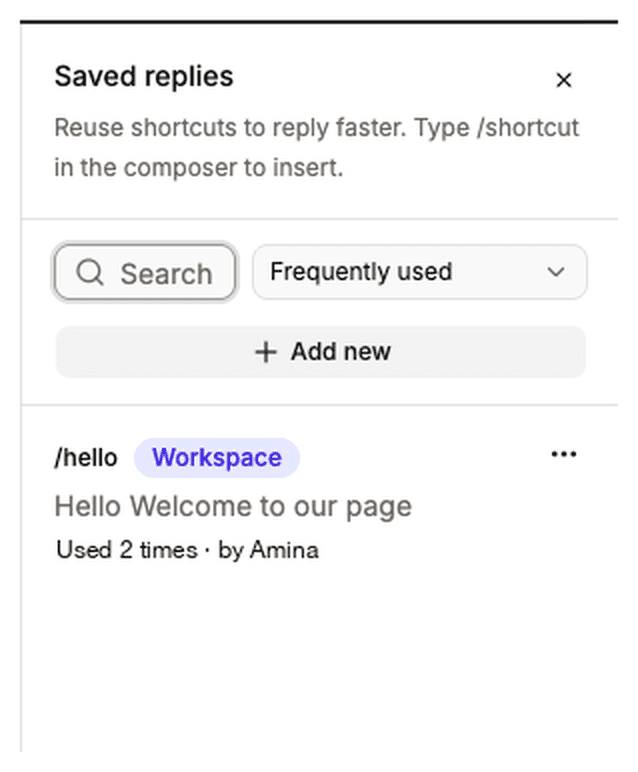
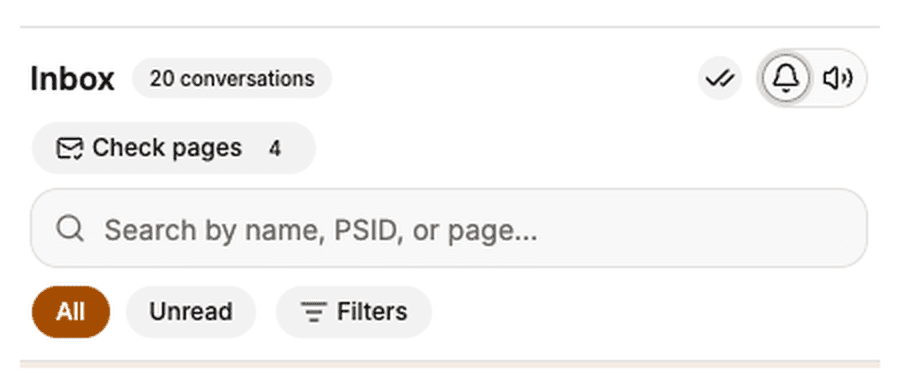
The inbox does considerably more than this — filters, saved replies, private notes and template replies after the window closes. The full walkthrough is in How to Use the Unified Inbox.
Step 8 — Organize leads with labels
Labels belong to the whole workspace, not to a single Page, so one label can cover leads across all of them.
Create them on Labels with a name and color, or straight from a lead: click Add label on any row, type a name and choose Create. Then target or exclude them in a bulk message, or filter the Inbox by label.
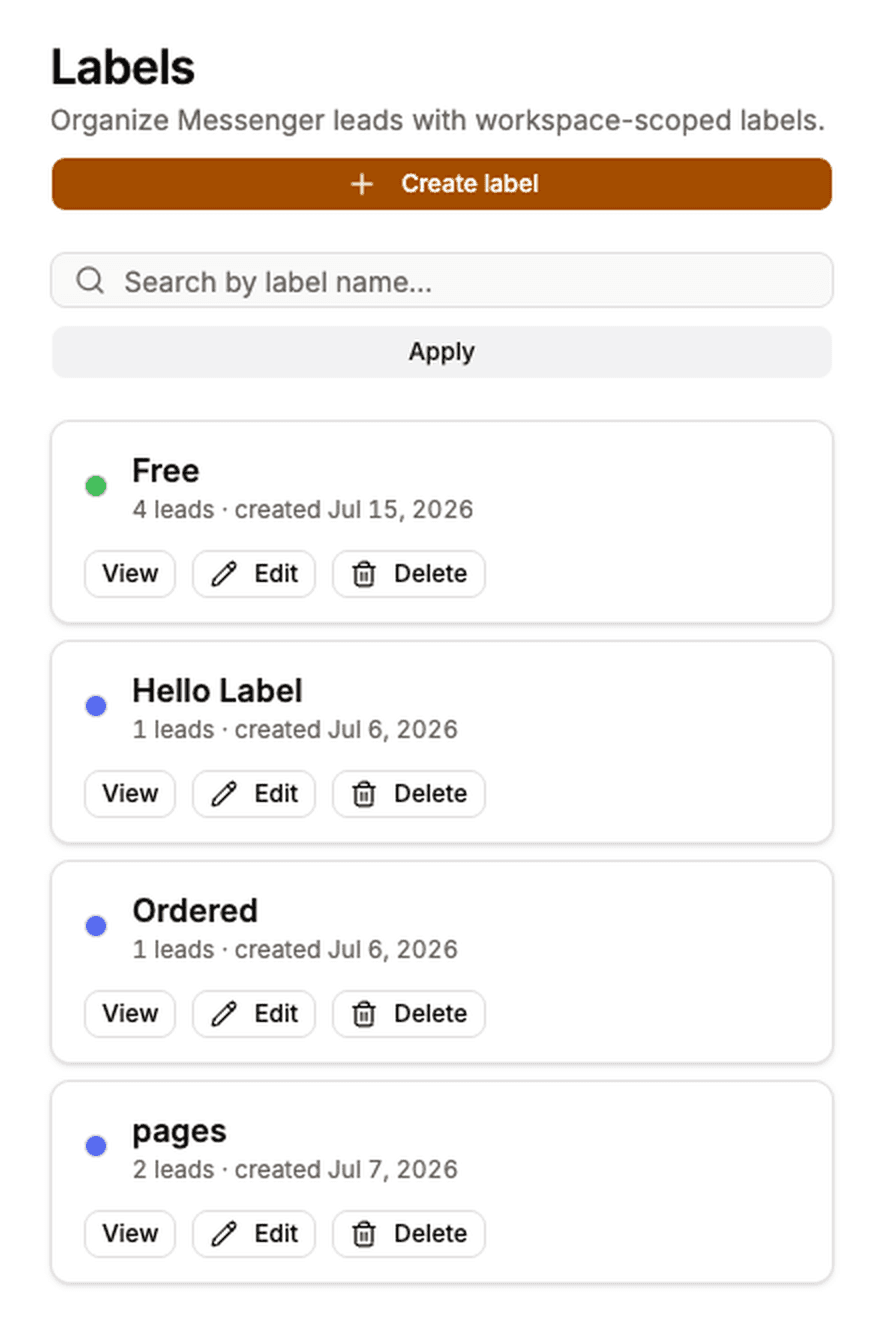
Deleting a label asks you to type its name to confirm, because it also strips that label from every lead carrying it.
Step 9 — Give your team their own logins
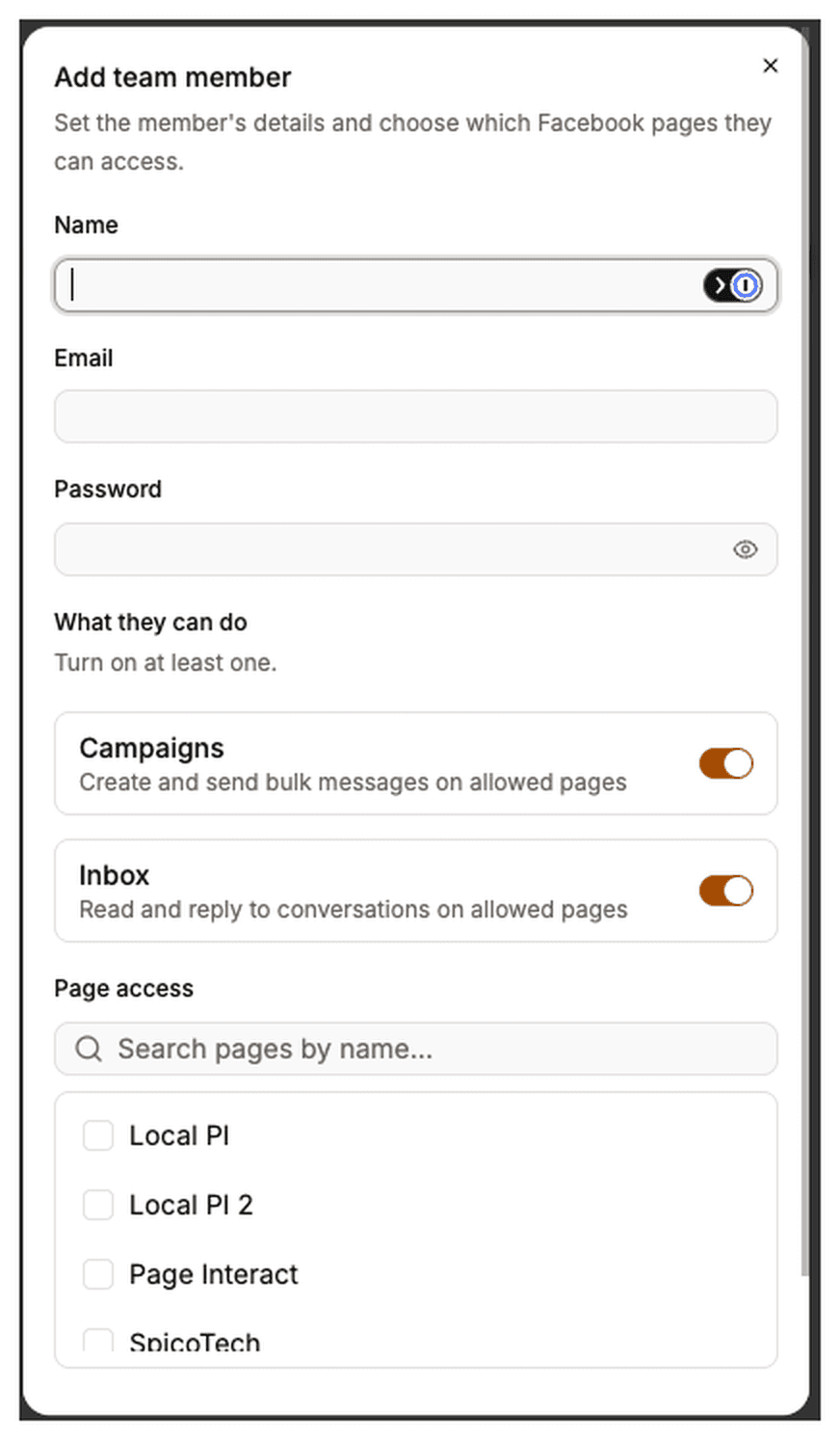
Never share your own password. Open Team and click Add team member.
Name, Email and Password.
What they can do — Campaigns, Inbox, or both. At least one is required.
Page access — the Pages they are allowed to see. Everything else stays hidden from them, including its leads and conversations.
When you save, the app shows a block with three lines: email, password and Workspace ID. They need all three. They then sign in through Sign in as a team member, not the normal sign-in form.
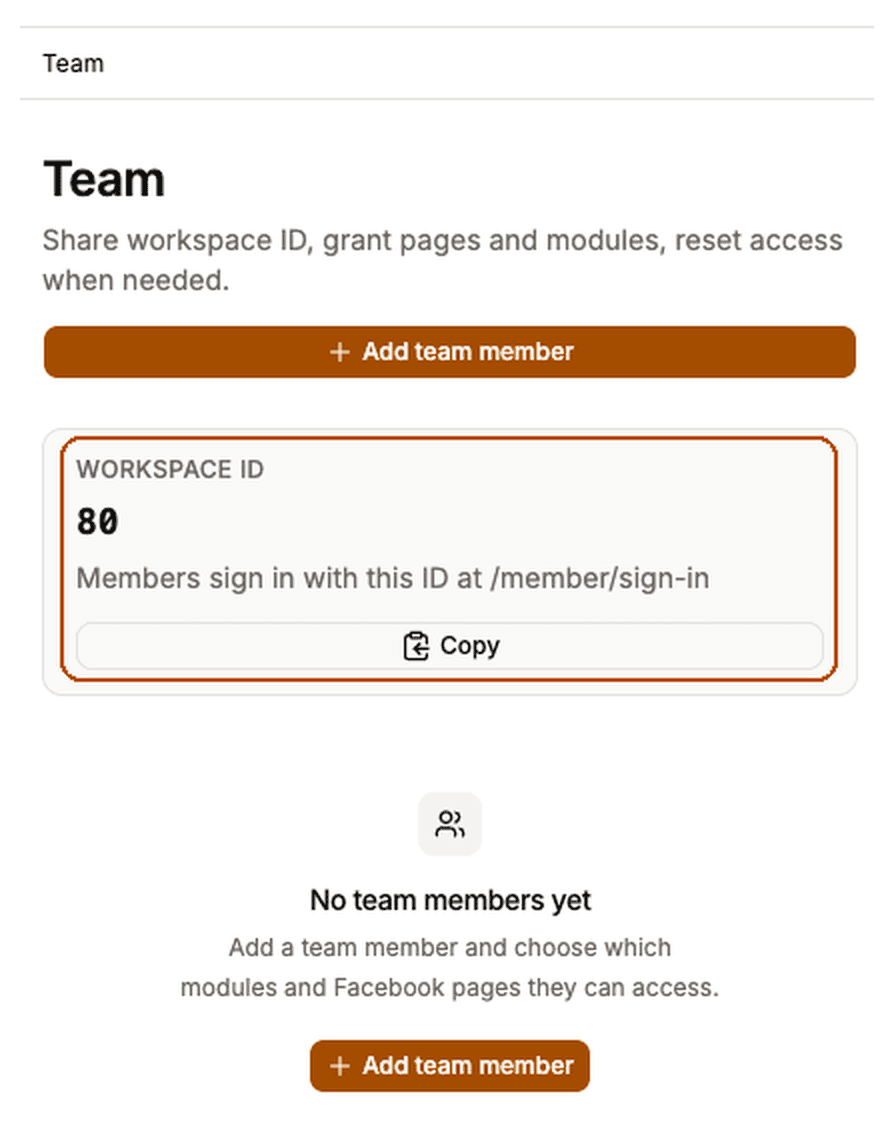
Two things to remember. The Workspace ID appears only on the Team page, which team members cannot open — so you have to pass it on. And team members cannot use two-factor authentication, so give them strong, unique passwords.
Creating, removing or resetting a member asks you to confirm with Confirm it’s you — your authenticator code, or your account password if 2FA is off.
Step 10 — Get notified on your phone
These are two separate things, and people often do one and expect the other.
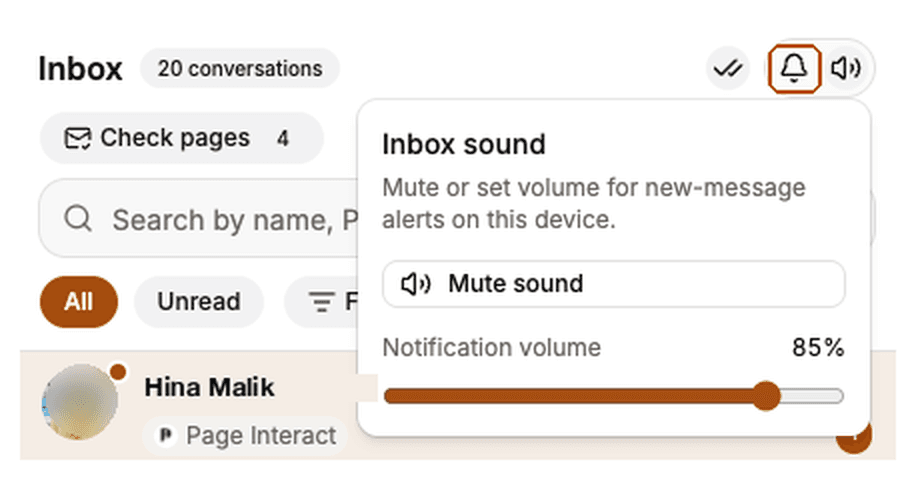
Turning on notifications. Open Inbox and click the bell in the toolbar, then allow notifications when the browser asks. You will get an alert whenever a message arrives and the tab is not in front. The speaker icon next to it controls the in-app sound and its volume.
Installing the app. Page Interact installs to your device like an app. There is no button for this inside Page Interact — your browser provides it:
Chrome on desktop — the install icon in the address bar, or the ⋮ menu.
Chrome on Android — ⋮ then Add to Home screen.
Safari on iPhone or iPad — Share, then Add to Home Screen.
On an iPhone you have to add it to the Home Screen before notifications will work at all. That is Apple’s rule, not ours: Safari only allows web notifications from an installed app, on iOS 16.4 or newer. Open Page Interact from the Home Screen icon first, then turn on the bell.
Step 11 — Lock down your account
Everything below lives on Settings, in the list down the side.
Profile — your display name.
Email — changing it needs your current password, and sends a security alert to your old address.
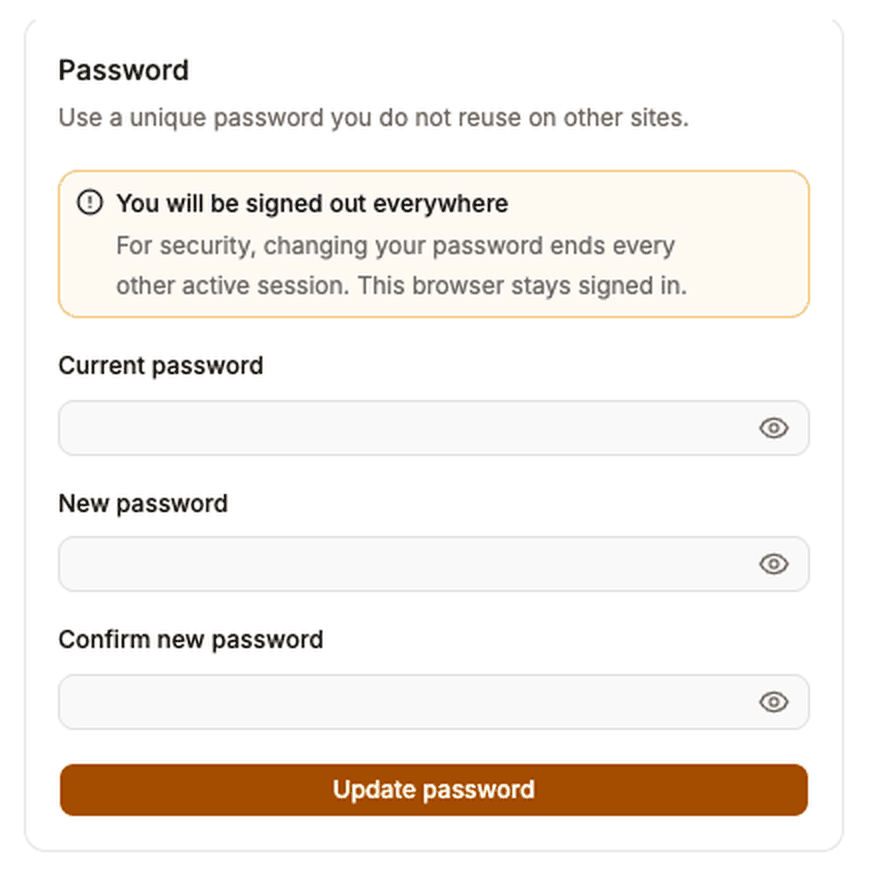
Password — changing it signs you out of every other device. This browser stays signed in.
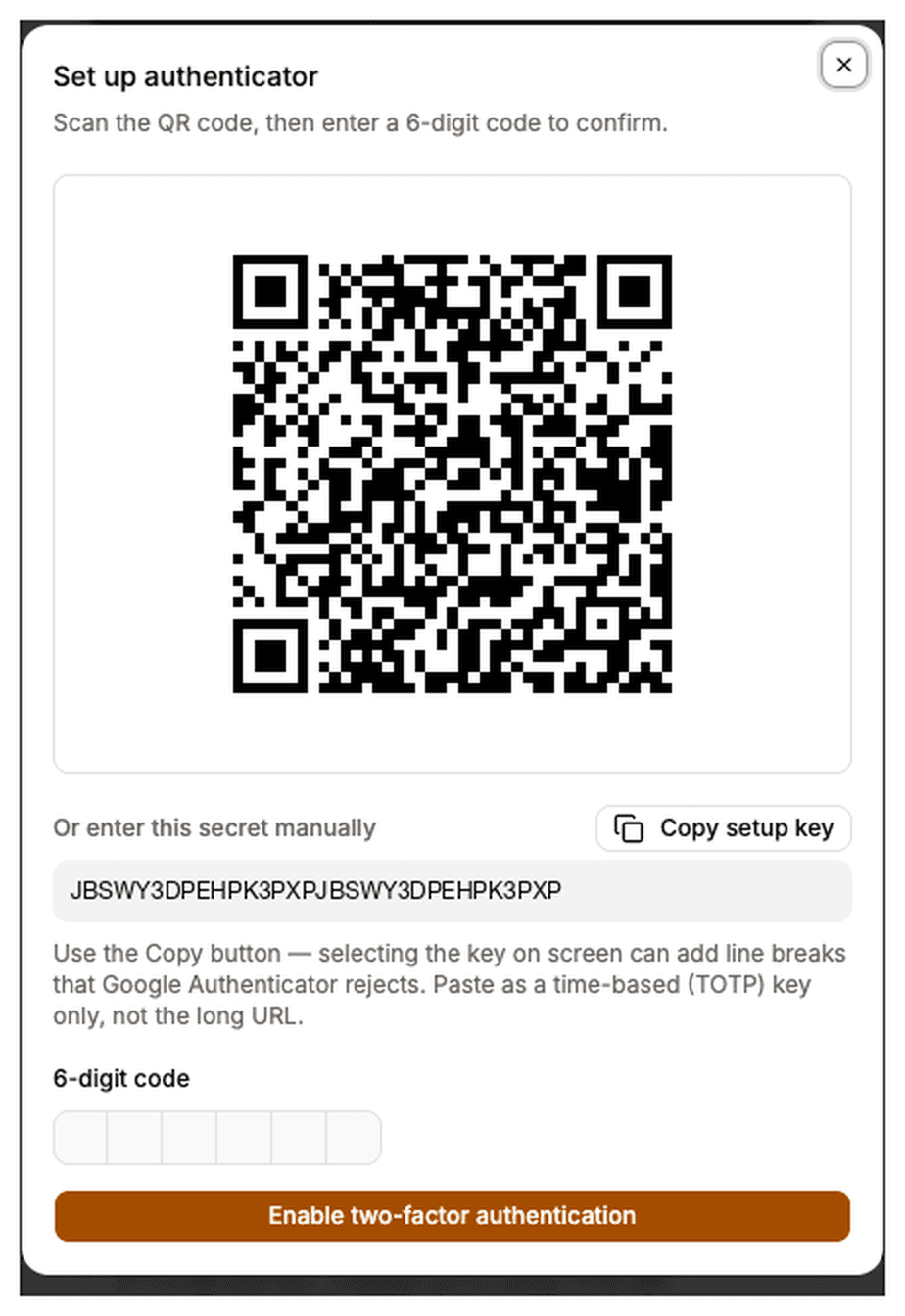
Two-factor authentication — scan the QR code with an authenticator app. Use the Copy button for the setup key rather than selecting it on screen, because selecting it can add line breaks that Google Authenticator rejects. Save the backup codes somewhere safe: each one works once, and they are never shown again.
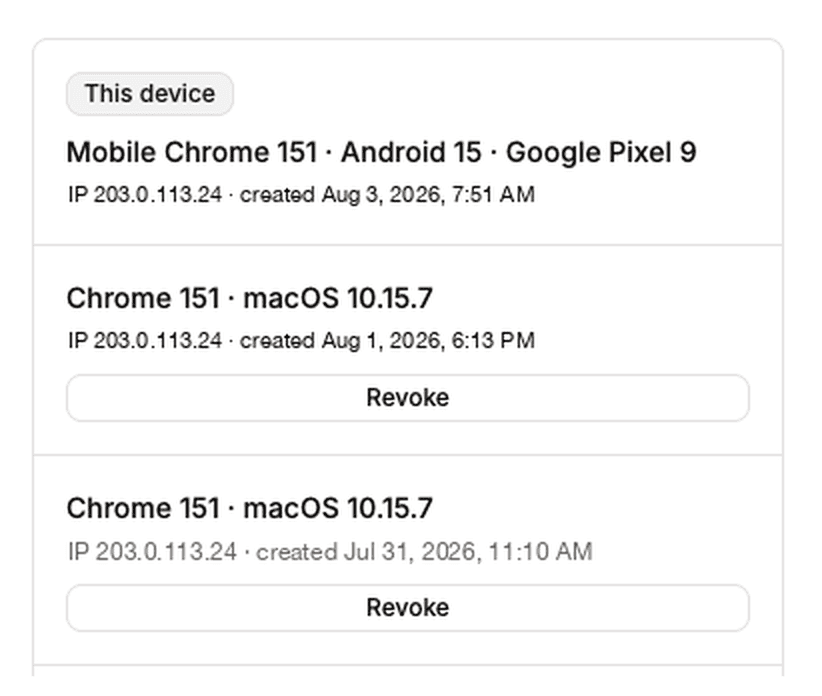
Sessions — every device you are signed in on. Revoke one, or Sign out other sessions for all of them at once. Both ask you to confirm it is you.
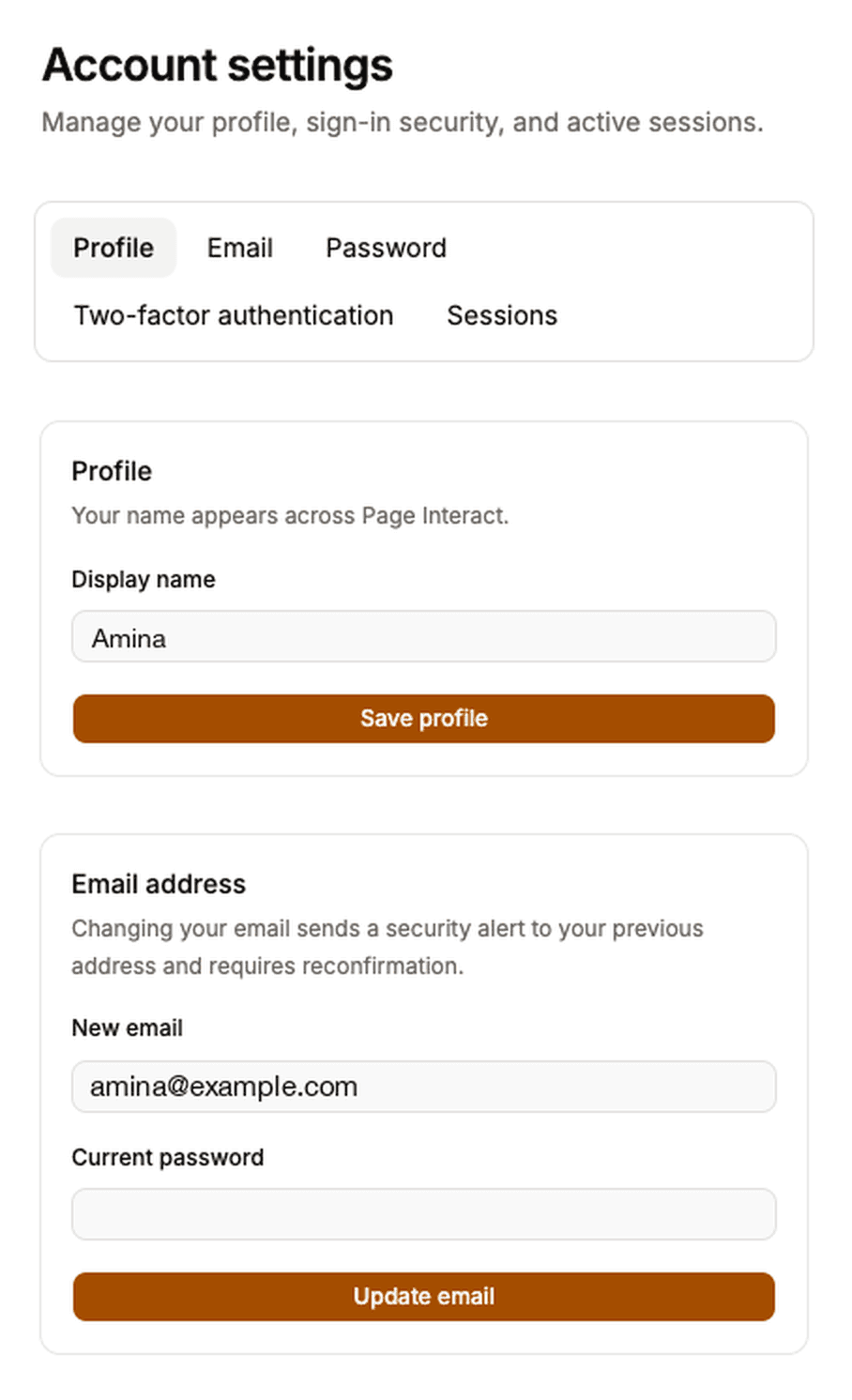
Team members see Profile and Password only. Changing a member’s email address is the workspace owner’s job.
What a message costs
Your balance is a pool of messages, shown at the top of every screen as something like 12,400 messages left · expires 3 Sep 2026.

One delivered recipient uses one message.
An image and text together uses two, because Meta counts it as two separate sends.
A reply from the Inbox uses one.
Skipped and Unreachable recipients are never charged. You only pay for messages Meta accepted.
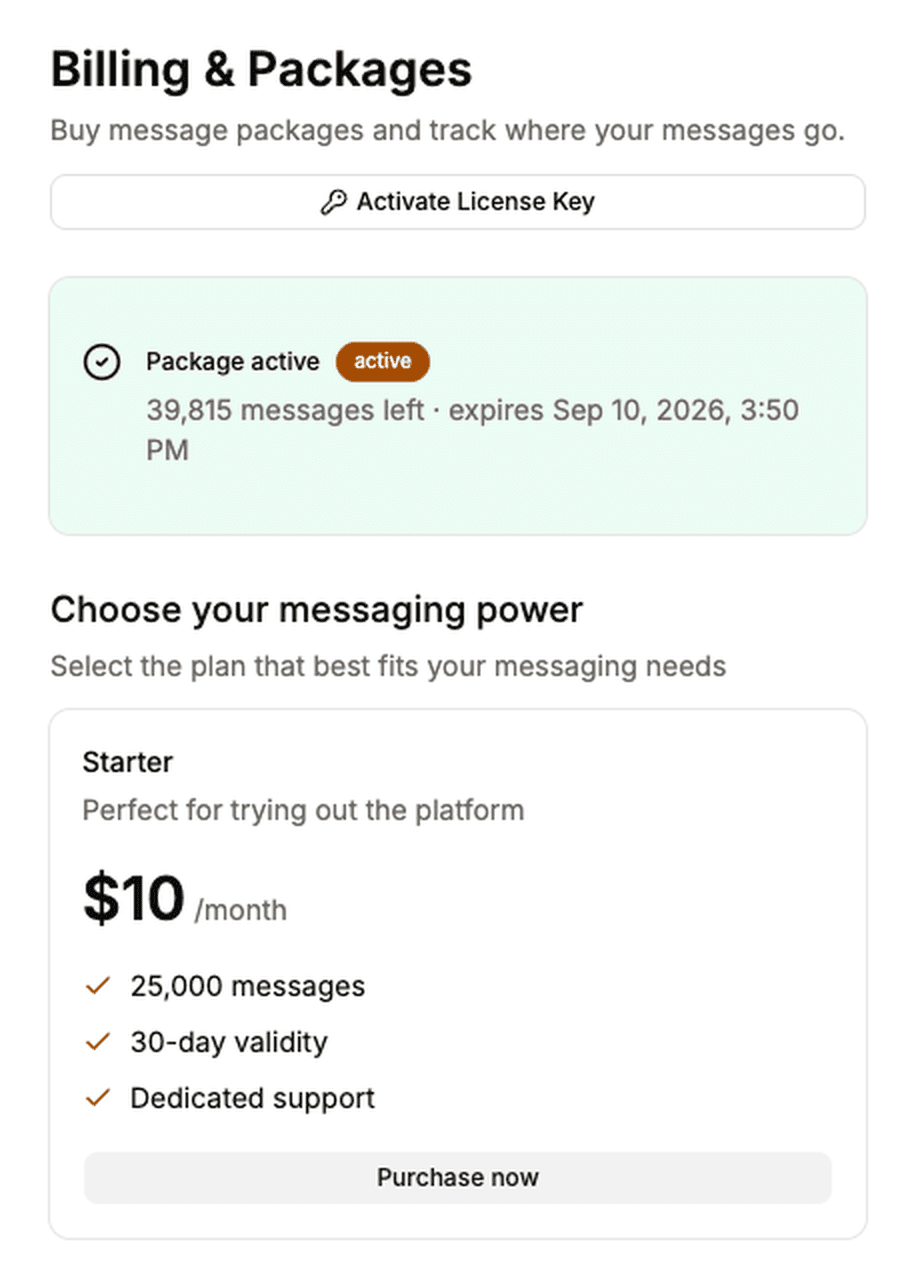
Top up on Billing & Packages with Purchase now, or use Activate License Key if support sent you a key. Buying while a package is still live rolls your remaining balance over into the new one.
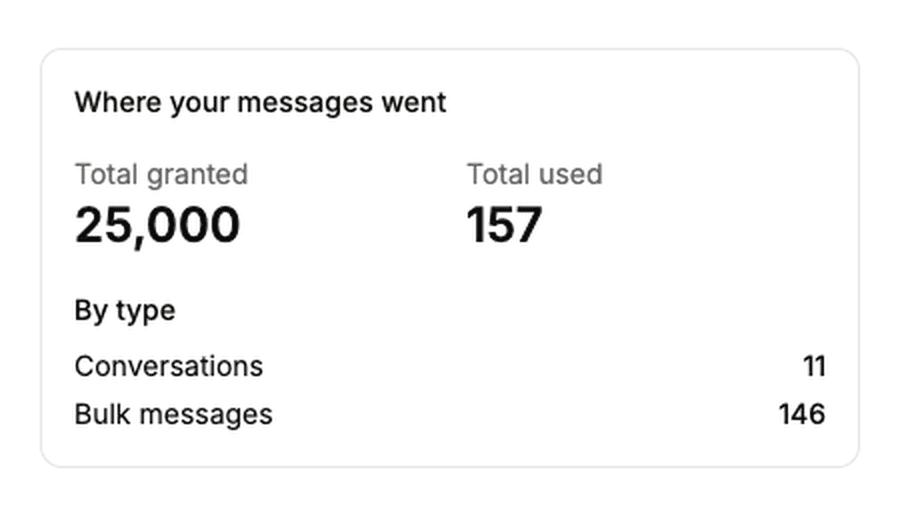
If the balance runs out midway through a send, that bulk message is cancelled rather than paused. Top up, then create a new one for the people who were missed.
Everything at a glance
Step | Where | What you do |
|---|---|---|
1 | app-v2.pageinteract.com | Sign in with your old email and password |
2 | Connect Facebook | Connect with Facebook, then pick Pages on Facebook’s screen |
3 | Facebook Pages | Sync Leads on each Page |
4 | New 24h + Subs bulk message | Message anyone who wrote in the last 24 hours, plus opted-in subscribers |
5 | New Template Bulk Message | Reach people outside that window with an approved template |
6 | Bulk messages | Watch Sent, Failed, Skipped and Unreachable |
7 | Inbox | Reply one to one — Message inside 24 hours, Template outside |
8 | Labels | Group leads, then target or exclude them |
9 | Team | Add members with their own logins and page access |
10 | Inbox bell, then your browser | Turn on notifications and install to the Home Screen |
11 | Settings | Name, email, password, 2FA, sessions |
12 | Billing & Packages | Buy messages or activate a license key |
If something is not working
What you see | Likely cause | What to do |
|---|---|---|
No Pages after connecting | The Pages were not granted on Facebook’s screen, or you are not a full admin | Click Sync Pages. If they are still missing, check your role on Facebook |
Pages are listed but there are no leads | The first sync has not been run | Click Sync Leads on each Page and let it finish |
Sync Leads is greyed out | The short cooldown after a run | Wait for Available again in Ns, then click it |
Most recipients Skipped on a 24h send | Few people messaged you in the last 24 hours | Send a Template Bulk Message instead |
A lot of Unreachable recipients | Another Messenger app controls those chats | Follow the Facebook Page thread issue guide |
A Page missing from a template send | That Page is not eligible for templates | Check its reason under Excluded from this template bulk message |
Sending stopped early | The message balance ran out | Top up, then send again to whoever was missed |
Cannot change a team member’s email | Email changes are owner-only | Ask the workspace owner to change it |